

Table of content
Your profile is in Settings > Account. Your password and signed-in devices are in Settings > Security. These are personal settings: they are the same in every workspace you belong to.
Before you begin
- Anyone can change their own profile. Admins can't change a teammate's email or password.
Edit your profile
Open Settings > Account.
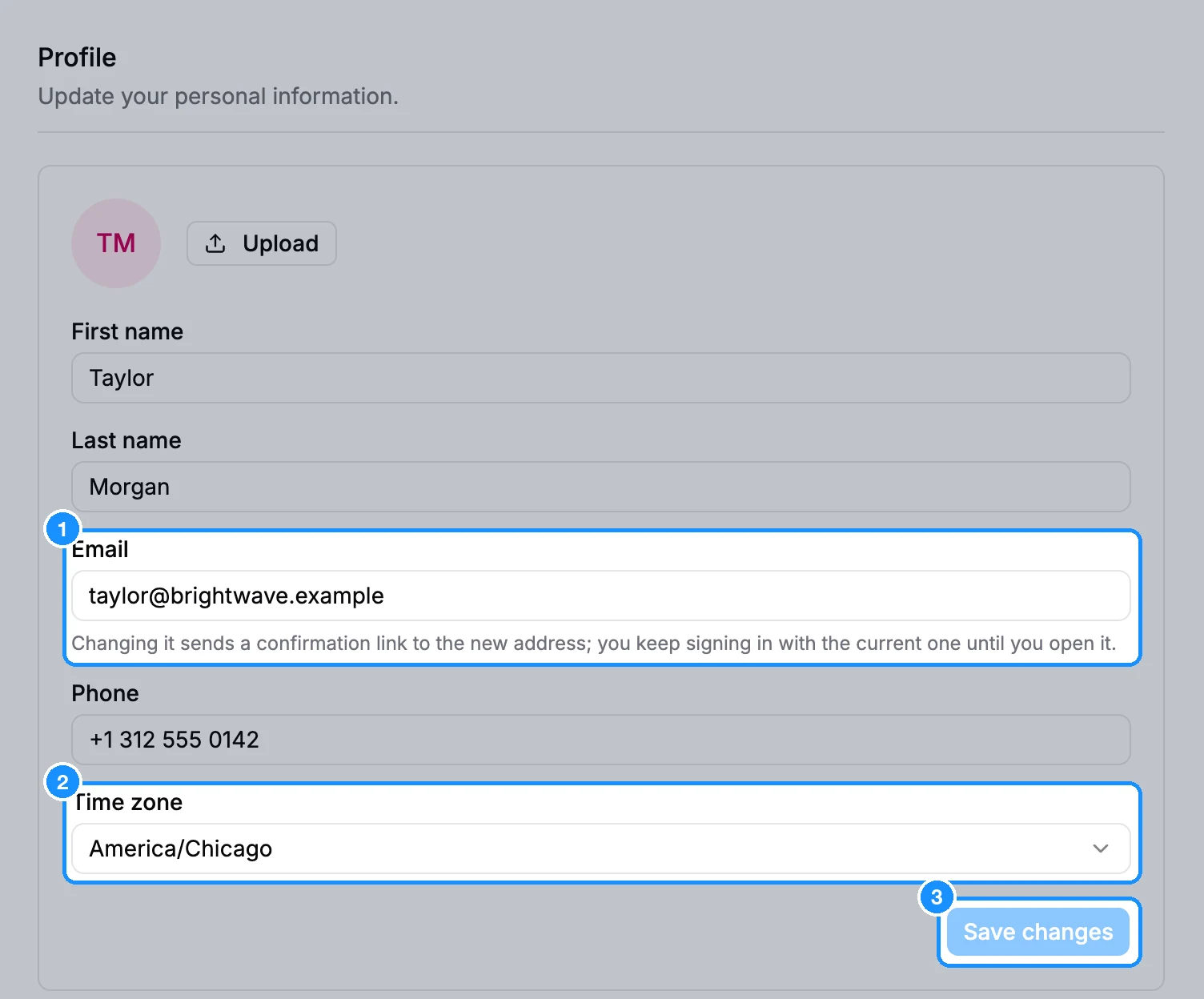
Under Profile, edit First name, Last name, Email, Phone or Time zone. Click Upload to change your photo.
Click Save changes.
Change your email
- In Settings > Account, type the new address in Email and click Save changes.
- You see "Profile saved. Confirm the new email from the message sent to ...". We send a confirmation link to the new address.
- Open that link within 10 minutes. Until you do, you keep signing in with your current email, and the page shows "Pending change to ... - check that inbox to confirm."
If the link expired, save the new address again to get a fresh one. "Email duplicated" means another GetProspect account already uses that address. Temporary (disposable) addresses are not accepted.
Change your password
Open Settings > Security and click Change password.
Enter Current password, then New password (at least 12 characters) and Confirm new password.
Click Change password. You see "Password changed".
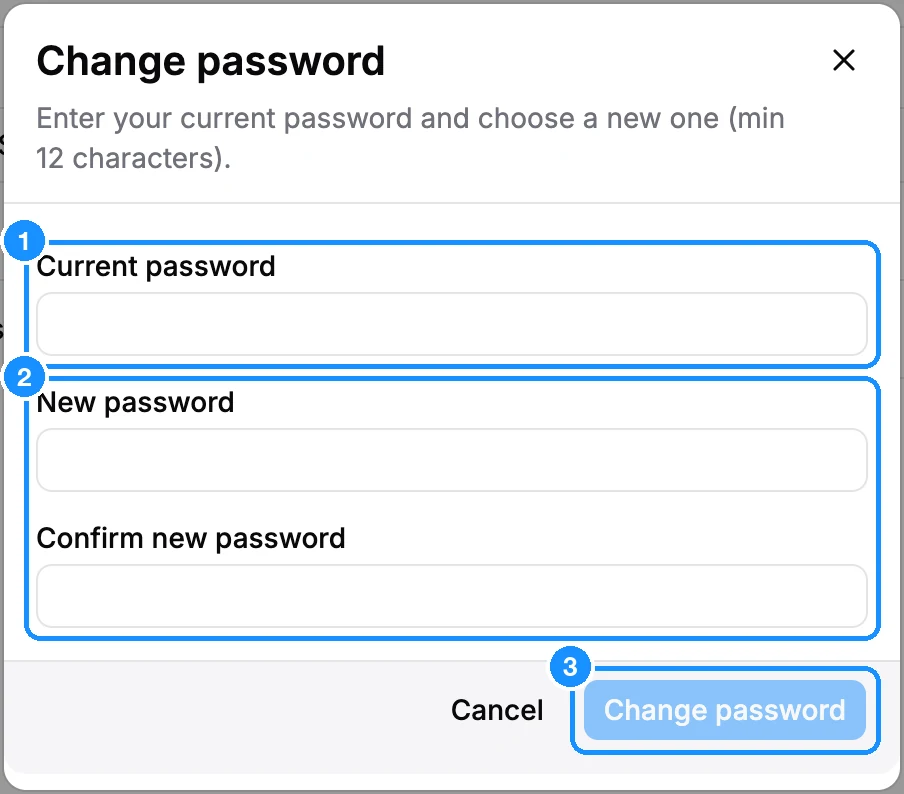
Changing the password signs you out on your other devices. This one stays signed in.
Created your account with Google and don't know a current password? Sign out, then use Forgot password? on the sign-in page to set one. See Signing in.
See and end active sessions
Active sessions on the Security page lists every device signed in to your account: Device / Browser, Location, IP and Date. Your current one is marked This device.
To sign out another device, click the Disconnect icon at the end of its row. To sign out this device, use Sign out in the account menu.
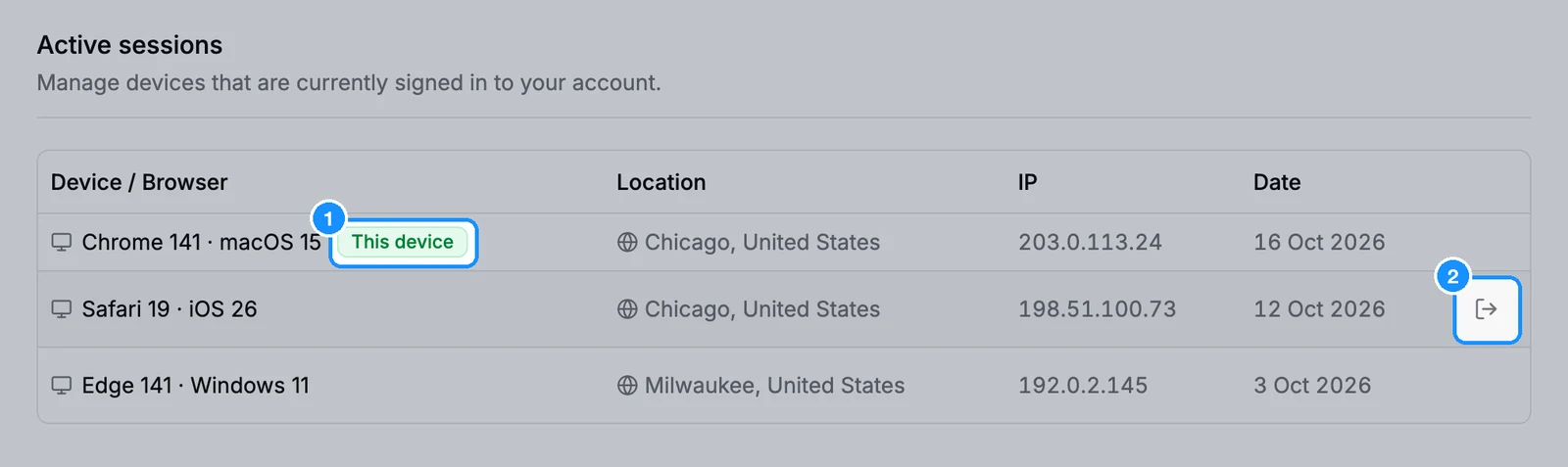
You can be signed in to the web app on up to 5 devices per workspace. Signing in on another one signs out the oldest.
FAQ
How do I change my account email?
Type the new address in Settings > Account > Email and confirm it from the link we send there. You don't need to delete your account or create a new one.