

Table of content
Connect HubSpot once, and every person or company you save in GetProspect is created in HubSpot. Set it up from Integrations. The rules shared by all CRMs are in How CRM sync works.
Before you begin
- You must be the workspace admin.
- You need a HubSpot account that can install apps.
- Credits: syncing is free.
Steps
Open Integrations and click Connect on the HubSpot card. Choose your HubSpot account and allow access. You return to Integrations with the card showing Connected.
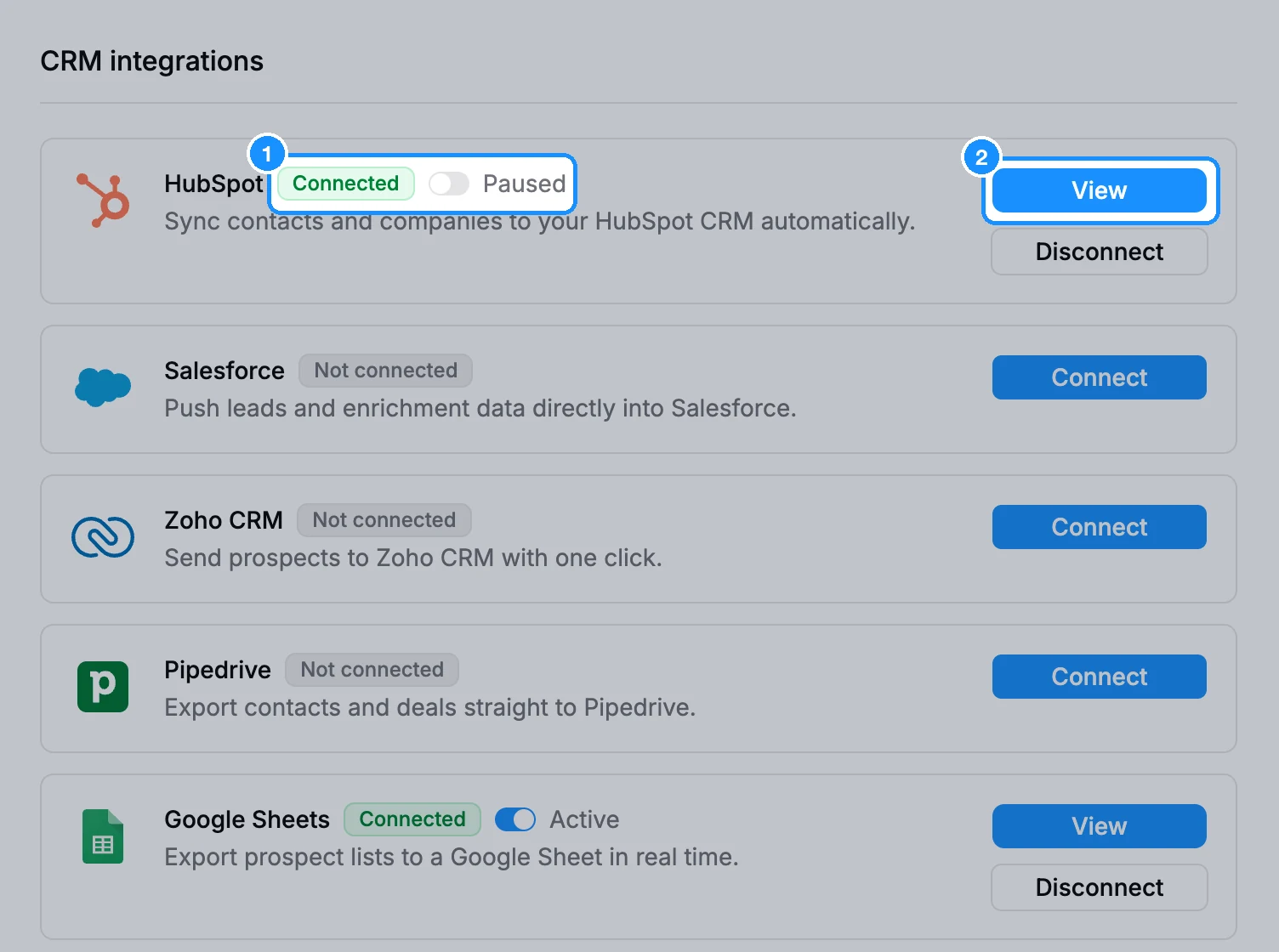
Click View to open HubSpot settings. The HubSpot account email shows under the title.
Under Synchronization, tick Update data on HubSpot when they are changed on GetProspect and Delete data on HubSpot when they are deleted on GetProspect if you want both.
Under Owner, pick the HubSpot user who owns new records, or No owner.
In Map contact properties and Map company properties, pick a HubSpot field for each GetProspect field, or Do not match. The email row always maps to HubSpot's email, and the company domain row to HubSpot's domain.
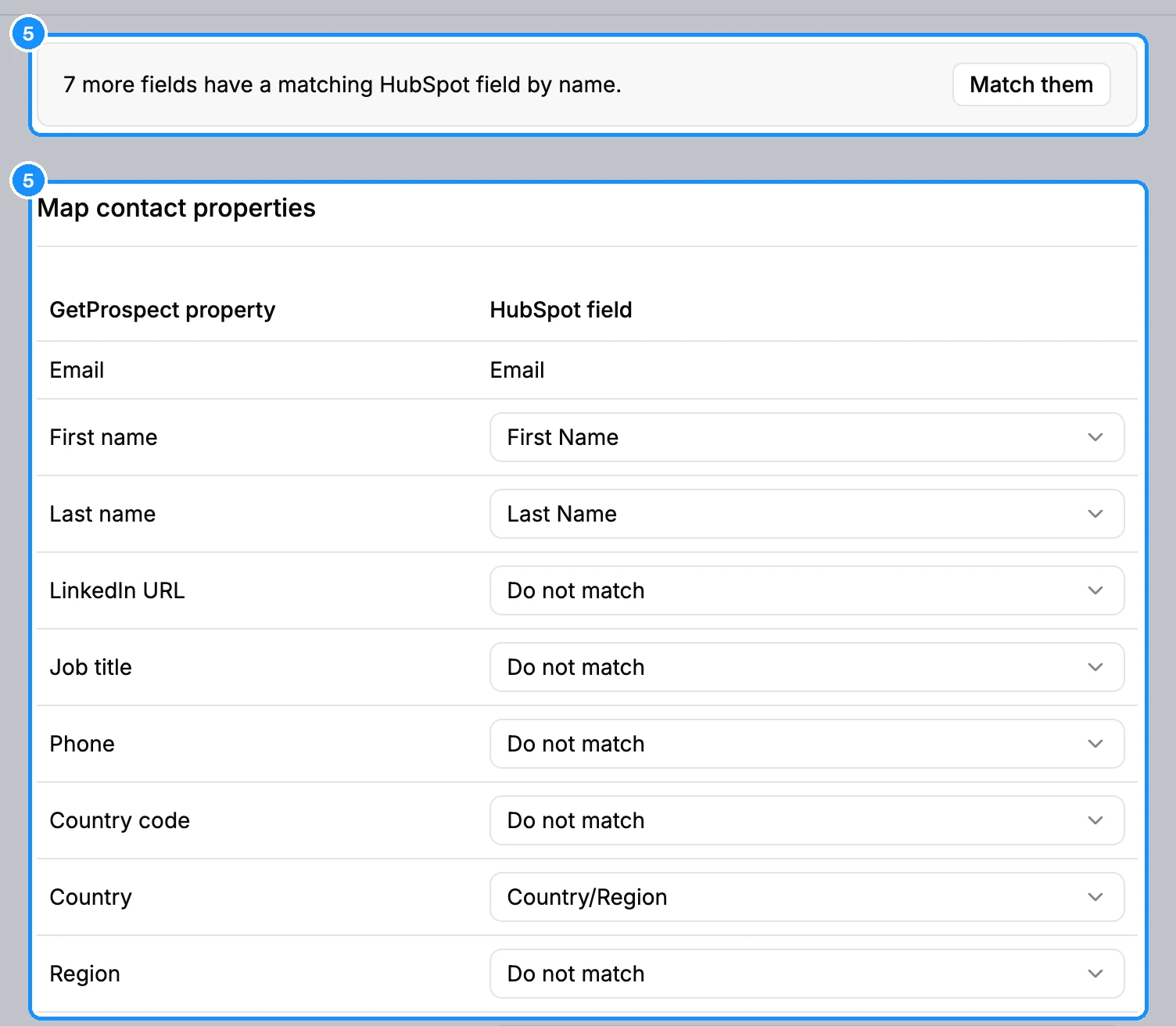
Click Save settings.
Optional: under Actions, click Push all GetProspect data to HubSpot, then Push now, to send people and companies saved before you connected.
What you get
Saved people become HubSpot contacts and saved companies become HubSpot companies, owned by the user you picked.
FAQ
I created a new property in HubSpot. Why can't I map it?
Click Refresh HubSpot fields under Actions. Save any open changes first.
How do I stop syncing for a while?
Turn off the switch next to the title. It shows Paused and nothing syncs until you turn it back on.
How do I disconnect?
On the Integrations page, click Disconnect on the HubSpot card and confirm.