

Table of content
Export people or companies from a search, a selection or a whole list to a CSV or Excel file. Every file is also kept on the Exports page.
Before you begin
- Any member of the workspace can export.
- Limits: up to 25,000 rows from a search or a selection, up to 1,000,000 from a whole list.
- Credits: exporting companies is free. People cost 1 email credit per included email you do not own yet. See "Credit usage".
Steps
Choose what to export:
- A whole list: open Lists and click the Export icon on the list's row, or the same icon in the list's header.
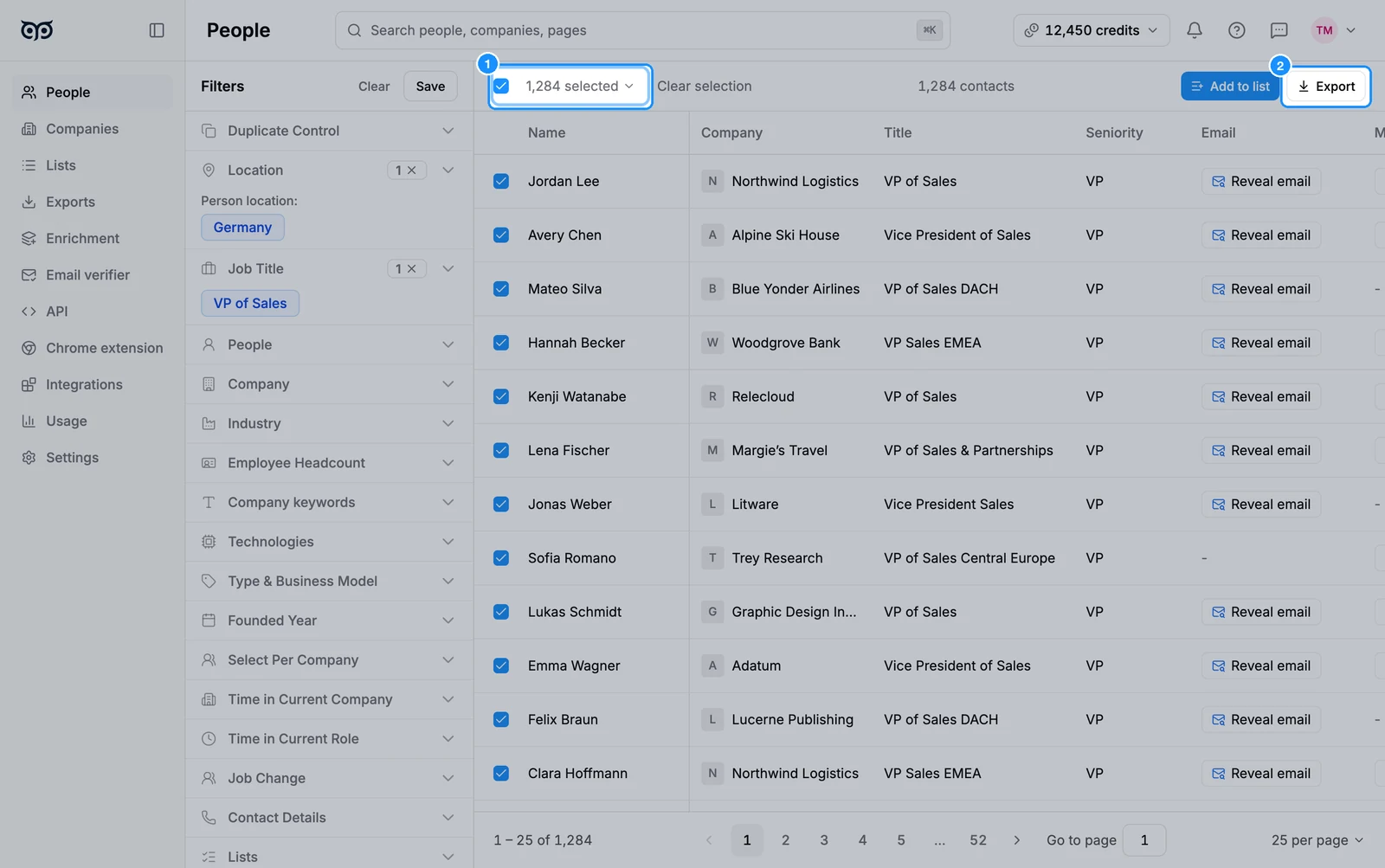
- A search or part of it: in People or Companies, click the checkbox menu above the table and pick Select this page, Select all people or Select number of people, then Apply. Click Export in the toolbar.
For people, pick All contacts or Contacts with valid email. Each card shows how many rows the file will hold. Company exports skip this step.
Under Select columns to export, tick the fields you want. Useful extras: GetProspect Person ID, Person in lists, Person saved at and Other positions, which adds the person's other current jobs as numbered columns.
Under File format, choose CSV or Excel (.xlsx). GetProspect remembers your choice for the next export.
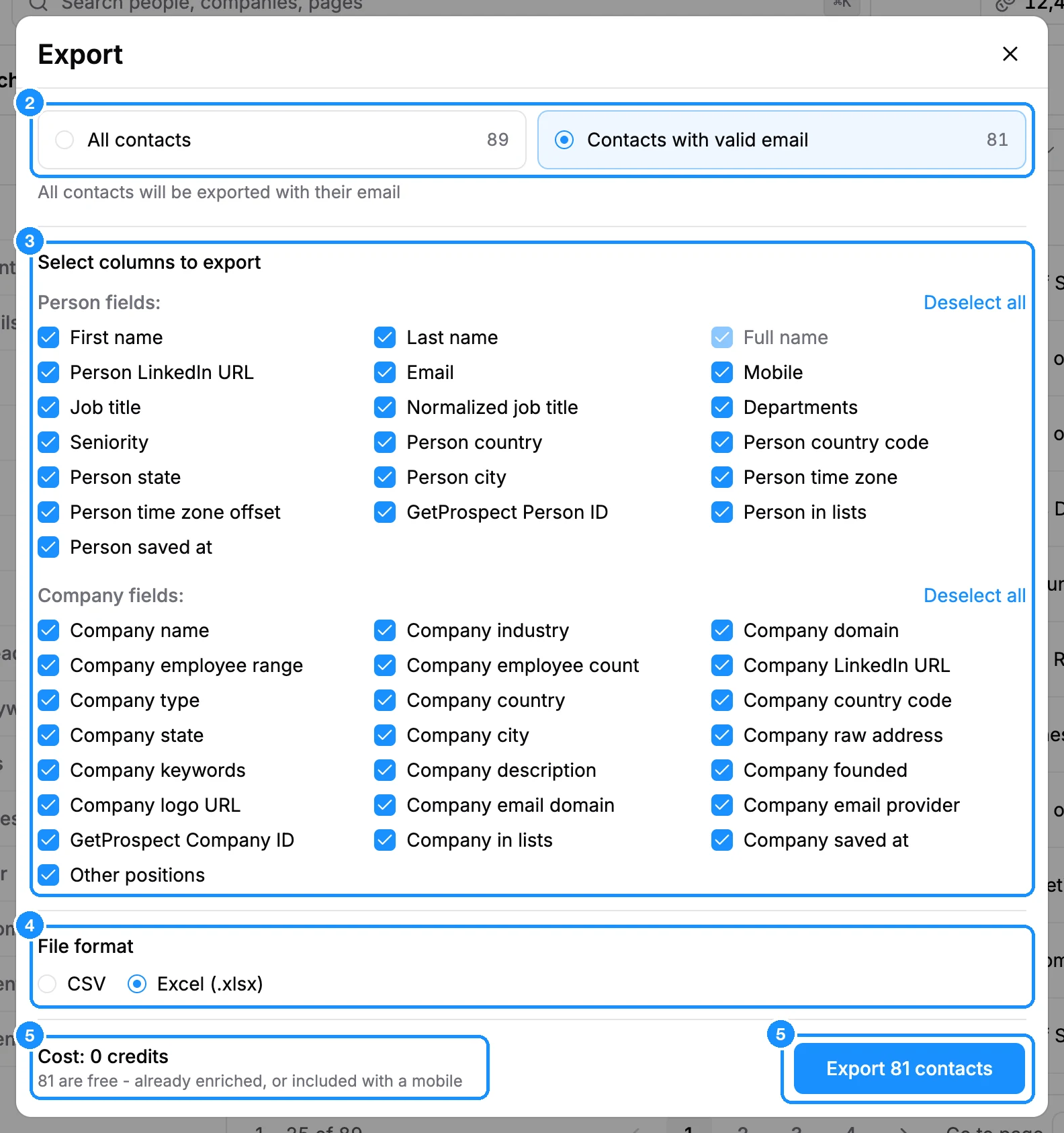
Check the Cost line next to the button, then click Export. The file builds in the background.
What you get
The file downloads by itself in the browser tab where you started the export, as soon as it is ready. You also get a notification in the bell, and an email if Exports ready is on in Settings > Notifications.
Every export is listed on the Exports page with its date, Records, Credits, Created by, Record type and From (the list or search it came from). Hover a row and click the download icon to get the file again. Use the filter to switch between Exported by me and Exported by anyone.
Credit usage
| Export companies | Free |
| Export people whose email you already own (revealed, saved or paid for before) | Free |
| Export people whose email you do not own yet | 1 email credit per email included |
| Mobile numbers in an export | Never charged; only numbers already revealed are included |
The dialog shows the cost before you start. If it is more than your balance, Export is disabled and the dialog links to Top up your credits. Narrow the selection or add credits to continue.
FAQ
How do I export a whole list?
Open Lists and click the Export icon on the list's row. You do not need to select people first.
The download did not start. Where is my file?
Open the Exports page and download it from the row. The file only downloads by itself in the tab that started the export.
Why does the dialog show a cost?
Exporting includes emails. Emails you already own are free; the cost is only for emails you have not revealed or saved yet. The small line under the cost says how many rows are free.
Can I export to Excel?
Yes. Pick Excel (.xlsx) under File format.
Where are the other companies a person works at?
Tick Other positions. The file gets a numbered block of job title and company columns for each extra position.
Why can't I start a second export?
One people export runs per workspace at a time. Wait for the running one to finish, then start the next.