

Table of content
GetProspect syncs with HubSpot, Salesforce, Zoho CRM, Pipedrive and Google Sheets. Once connected, every person or company you save to a list is sent to the CRM automatically. You manage each one from Integrations.
Before you begin
- Only the workspace admin can connect, set up, pause or disconnect a CRM. Members see whether it is connected and active.
- Credits: syncing costs nothing. The save that puts a person in a list is what costs credits.
The rules every CRM follows
- Saves sync automatically. A person or company saved to a list from the web app, the Chrome extension, CSV enrichment or the API is created in the CRM while the integration is Active.
- Only records saved after you connect are created. Records saved before go only when you click Push all GetProspect data to
on the settings page. This also applies after you reconnect. - Updates and deletes are your choice. Under Synchronization, two checkboxes decide whether the CRM record is updated when it changes in GetProspect, and deleted when you delete it in GetProspect.
- Owner. Under Owner, pick which CRM user owns the records GetProspect creates, or No owner.
- Mapping uses a fixed list of GetProspect fields. Each row is a GetProspect field; pick the CRM field it goes to, or Do not match. Only compatible field types are offered.
- New CRM fields need a refresh. After you add a field in the CRM, click Refresh
fields so it appears in the mapping. - People without an email still sync. A person saved without an email, or with the email withheld for lack of credits, is sent without it.
- Pause anytime. The switch next to the CRM name sets it to Active or Paused. Nothing syncs while it is paused.
Steps
Open Integrations and click Connect on the CRM card. Sign in to the CRM and allow access.
Back in GetProspect, click View on the card to open its settings page.
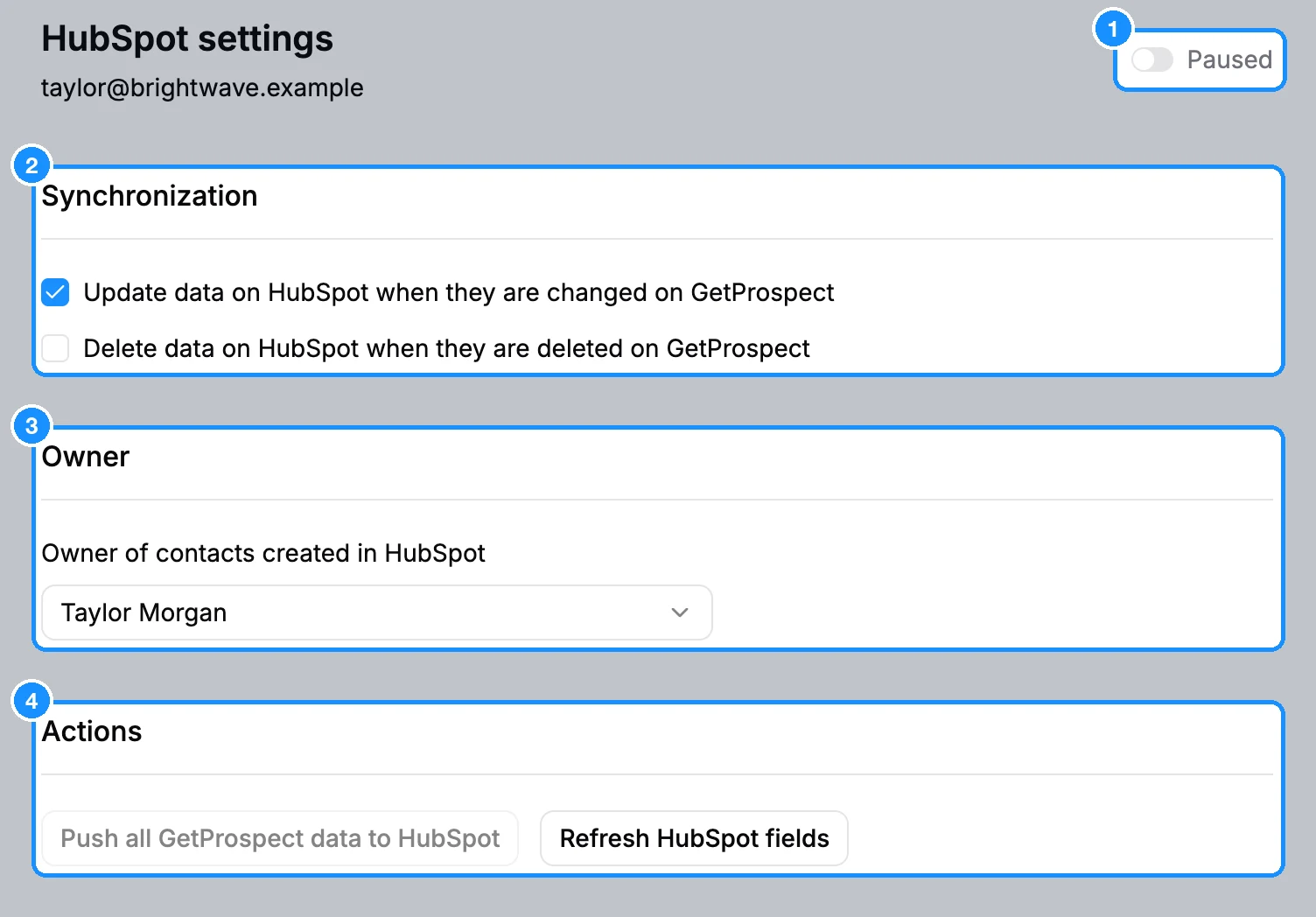
Set Synchronization and Owner, then map the fields in Map contact properties and Map company properties. If GetProspect finds CRM fields with matching names, click Match them.
Click Save settings. Push and Refresh stay disabled until you save.
To send records saved before you connected, click Push all GetProspect data to
, then Push now.
What you get
New saves appear in the CRM as contacts (leads in Salesforce, rows in Google Sheets) and companies. The push sends everything already saved in the workspace using your mapping, and updates the records that already exist there.
FAQ
I connected the CRM but my older people did not appear. Why?
Only records saved after connecting are created automatically. Click Push all GetProspect data to
Can I create my own fields to map?
No. Map the fixed GetProspect fields to any compatible field you create in the CRM, then click Refresh
Is there an "Add to CRM" button on the people table?
No. Sync runs from the integration: saving a person to a list sends them.