

Table of content
Connect Salesforce once, and every person you save in GetProspect is created as a Salesforce lead. Set it up from Integrations. The rules shared by all CRMs are in How CRM sync works.
Before you begin
- You must be the workspace admin.
- You need a Salesforce user that can create leads.
- Credits: syncing is free.
Steps
Open Integrations and click Connect on the Salesforce card. Sign in to Salesforce and allow access. The card then shows Connected.
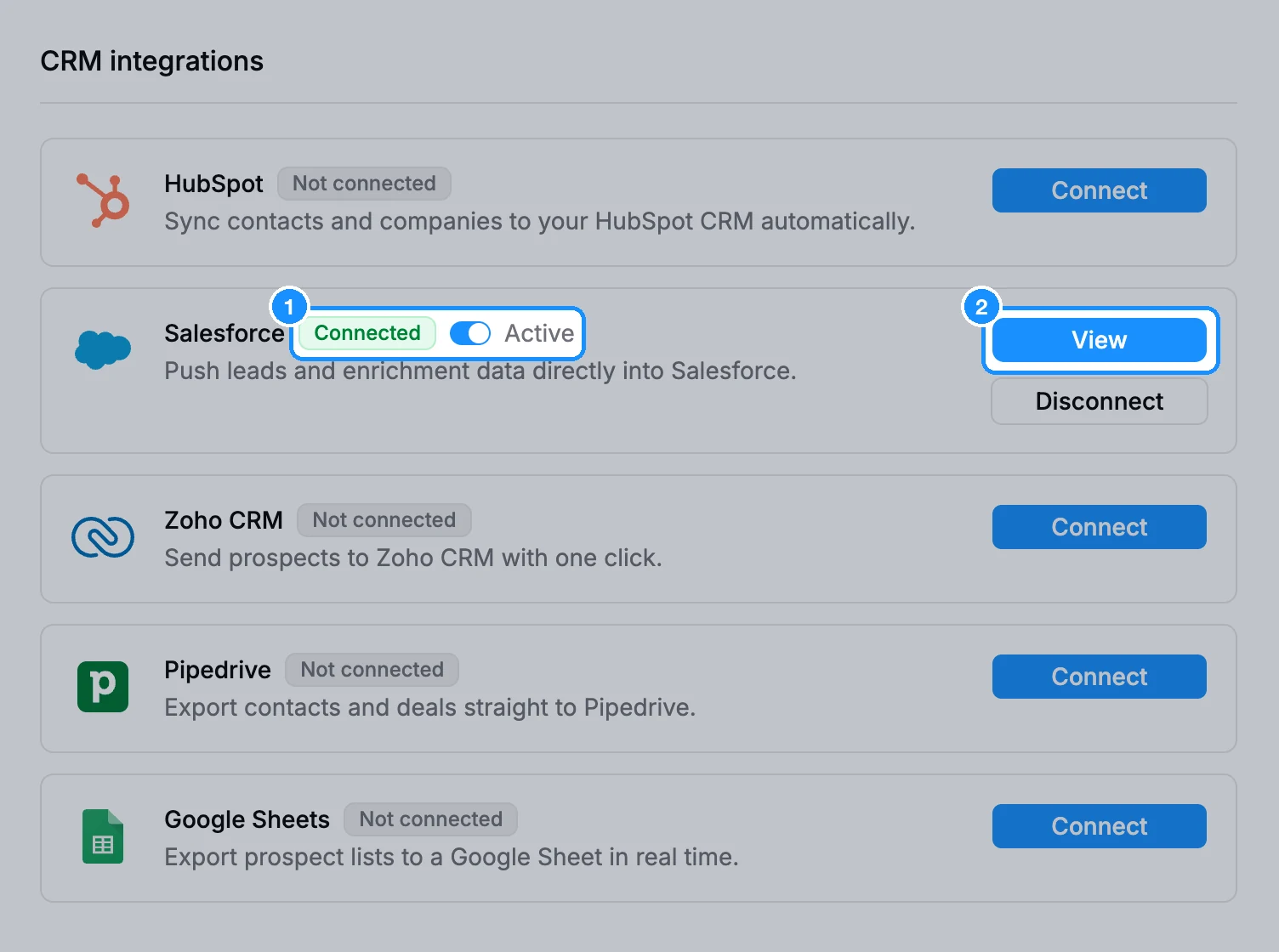
Click View to open Salesforce settings.
Under Synchronization, choose whether to Update data on Salesforce when they are changed on GetProspect and Delete data on Salesforce when they are deleted on GetProspect.
Under Owner, pick the Salesforce user who owns new leads, or No owner.
In Map lead properties and Map company properties, pick a Salesforce field for each GetProspect field, or Do not match.
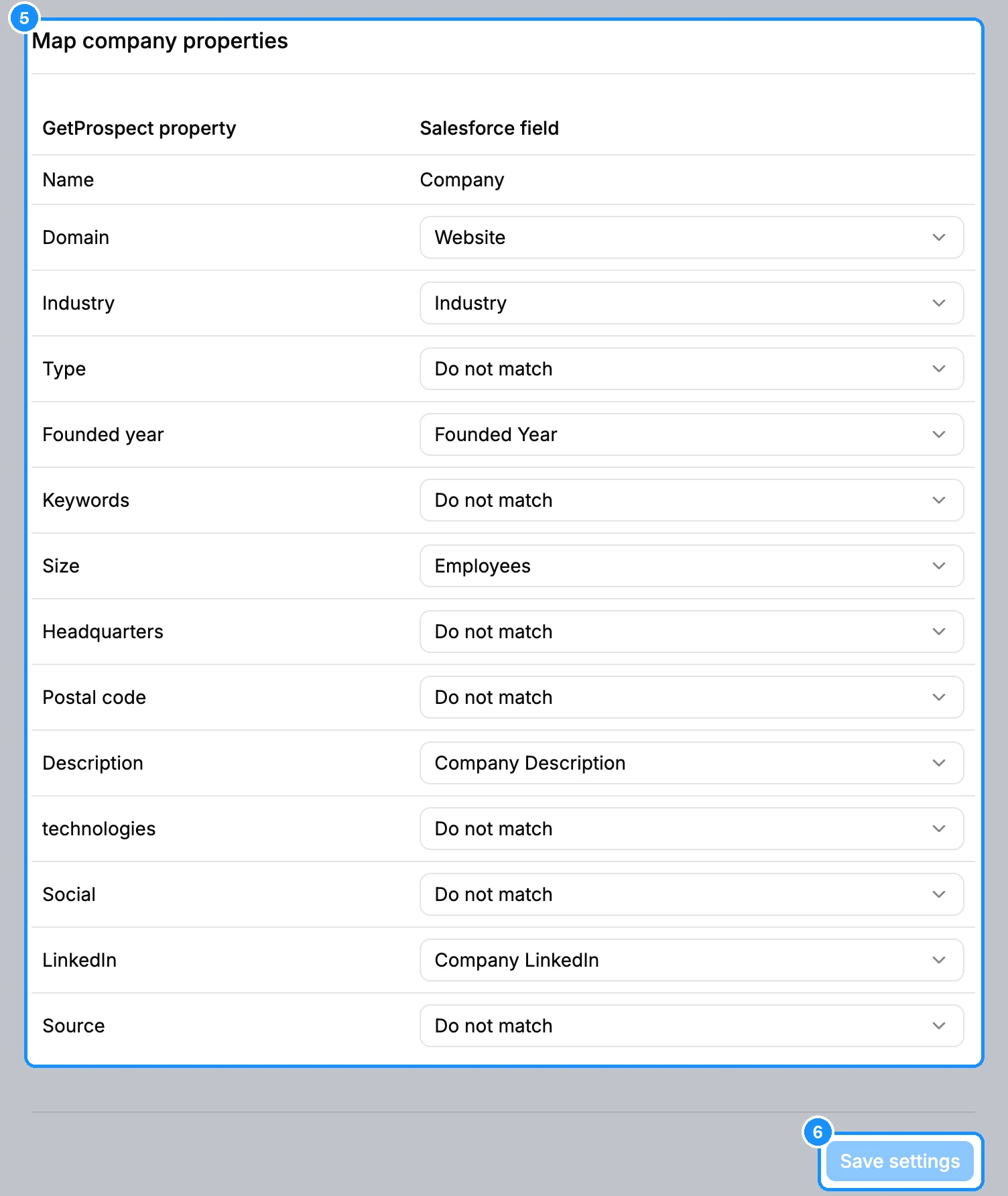
Click Save settings.
Optional: click Push all GetProspect data to Salesforce, then Push now, to send records saved before you connected.
What you get
Each saved person becomes a Salesforce lead. Company details are written onto the same lead.
How Salesforce mapping differs
- People and company fields both land on the lead, so each Salesforce field can be used only once across the two tables.
- The company name row always maps to the lead's Company field.
- Once the email, first name and last name rows are mapped and saved, they stay locked to those fields.
FAQ
I added a custom field in Salesforce. Where is it?
Click Refresh Salesforce fields under Actions, after saving any open changes.
Why is a Salesforce field greyed out in the list?
It is already used in the other table, or its type does not fit the GetProspect field.