

Table of content
Blocked people and companies never appear in your workspace's searches. Manage them in Settings > Blocked. This replaces the old Ignore list.
Before you begin
- Any workspace member can block and unblock. The list applies to everyone in the workspace.
- Credits: free.
Block a person
Open Settings > Blocked > Contacts.
Under Block a contact, enter First name and Last name, then click Block.
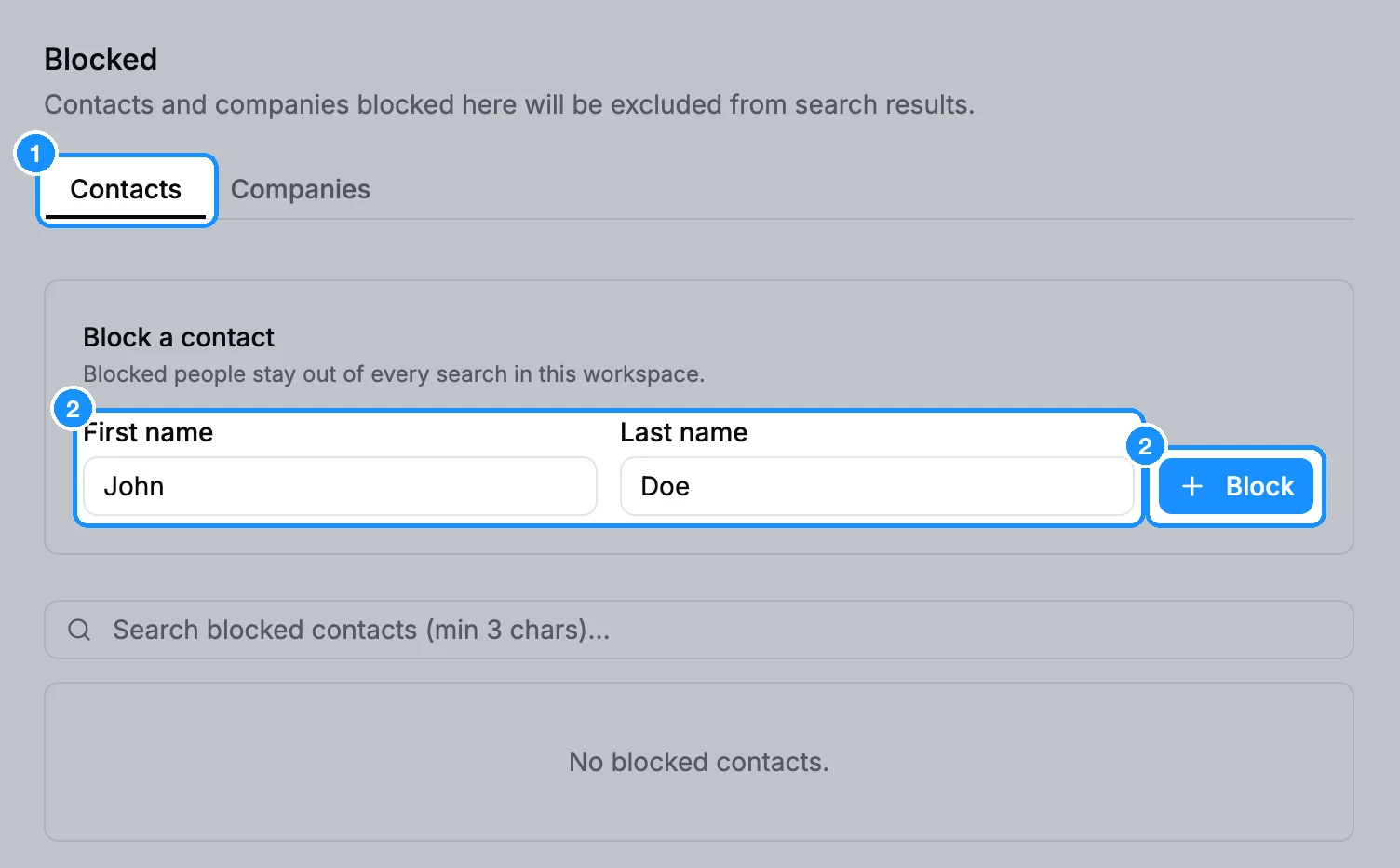
Everyone with that first and last name is hidden, at any company.
Block a company
Open the Companies tab.
Under Block a company, enter the Domain, for example
example.com, and click Block.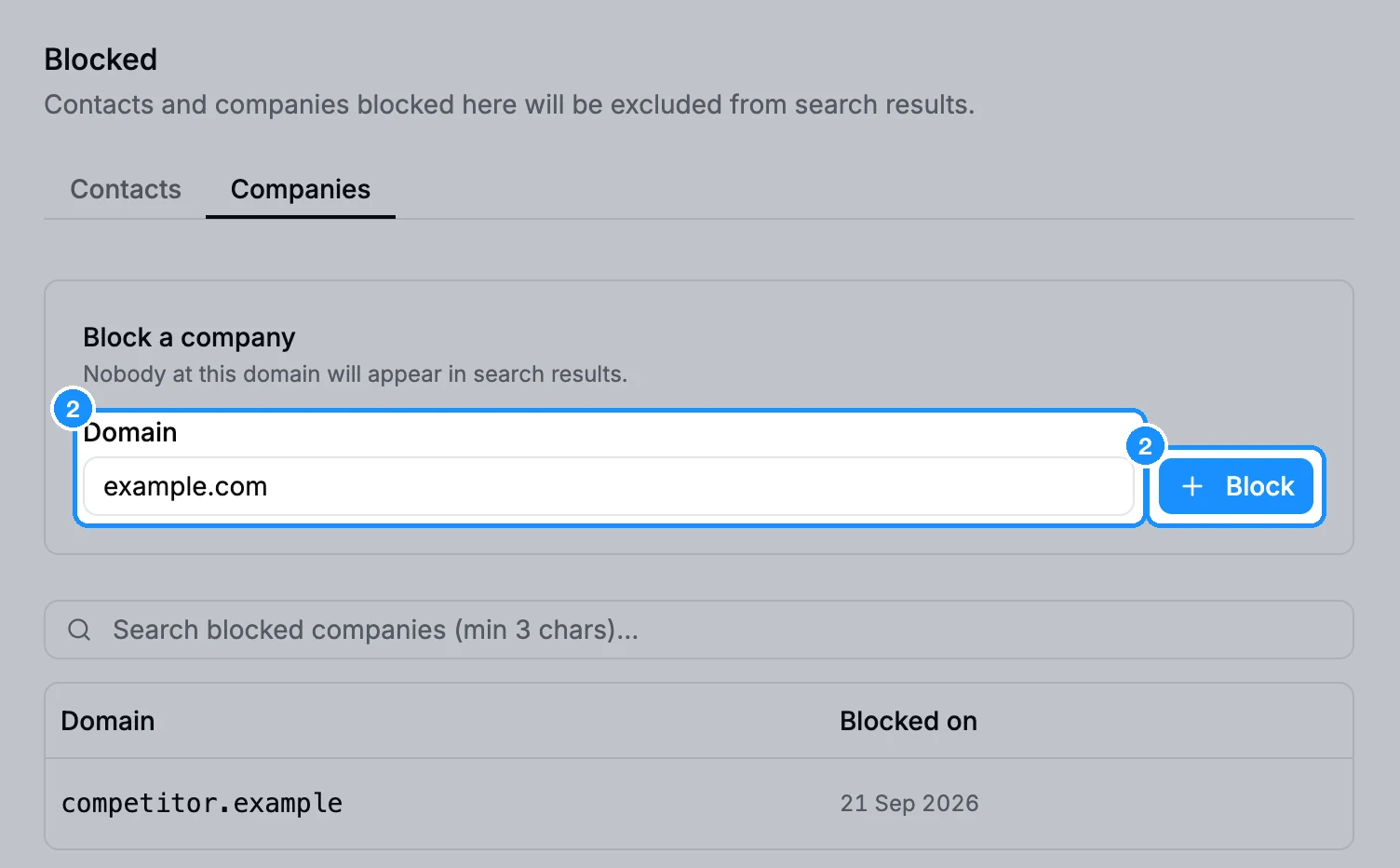
The company and everyone who works there are hidden.
What gets excluded
Within about 15 seconds, blocked people and companies stop appearing in:
- People and Companies search, and top search suggestions
- The single lookups on the Enrichment page, including Find email
To unblock, find the entry in the table and click its unblock icon.
FAQ
Can I upload a file of companies to block?
Not here: Blocked takes one entry at a time. For a file, use the Company filter's Bulk include or exclude companies and exclude the list. Saved, it is reusable in every search. See Exclude companies in bulk.
How do I hide people I already have, without blocking them?
Use Duplicate Control > Hide already saved people. See Duplicate Control.