

Table of content
GetProspect remembers every People and Company search you run. Name the ones you want to keep, and open any of them again from My searches, with the same filters.
Before you begin
- Any workspace member can save searches. Your searches are your own.
- Credits: free.
Save a search
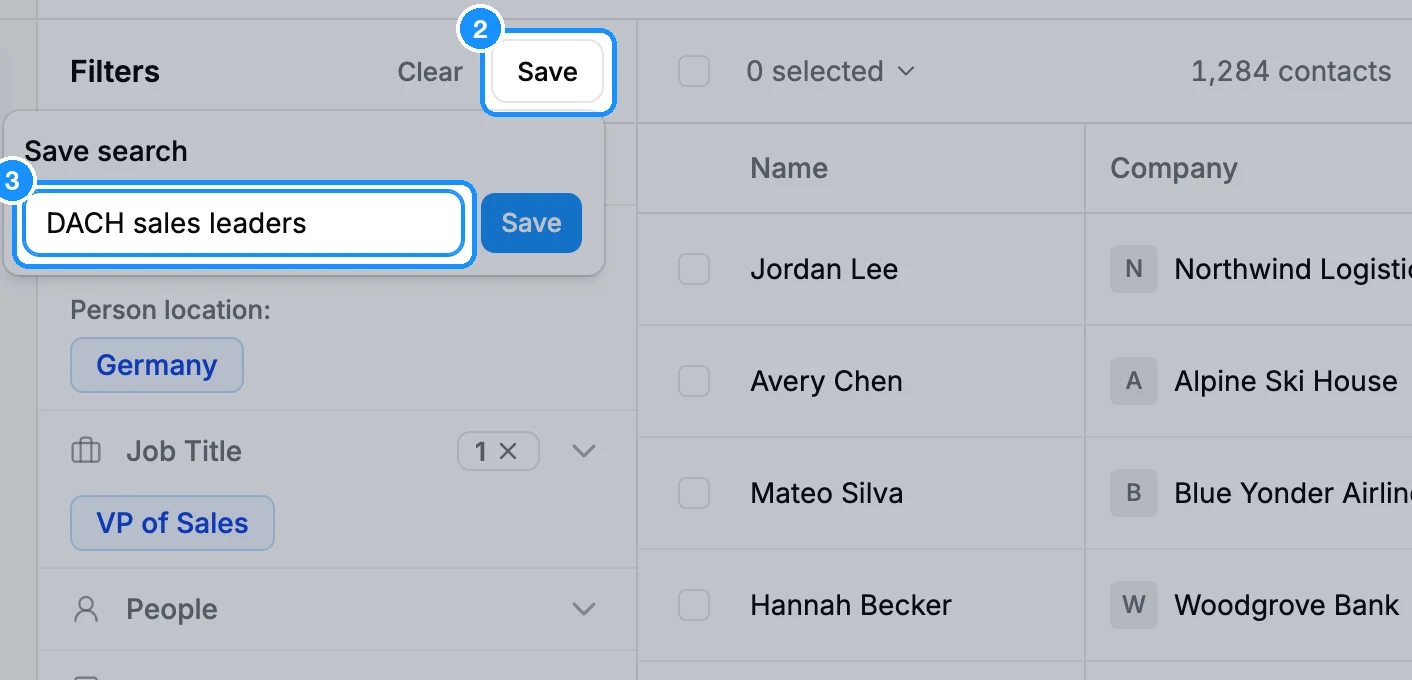
Click Save at the top of the filter rail.
Type a name in Search name and confirm. The button changes to Saved. If you change a filter, Save comes back so you can save the new version.
Open a recent or saved search
Click My searches in the results toolbar.
Pick a tab: Recent for every search you ran, Saved for the ones you named.
Click a card to open the search with its filters.
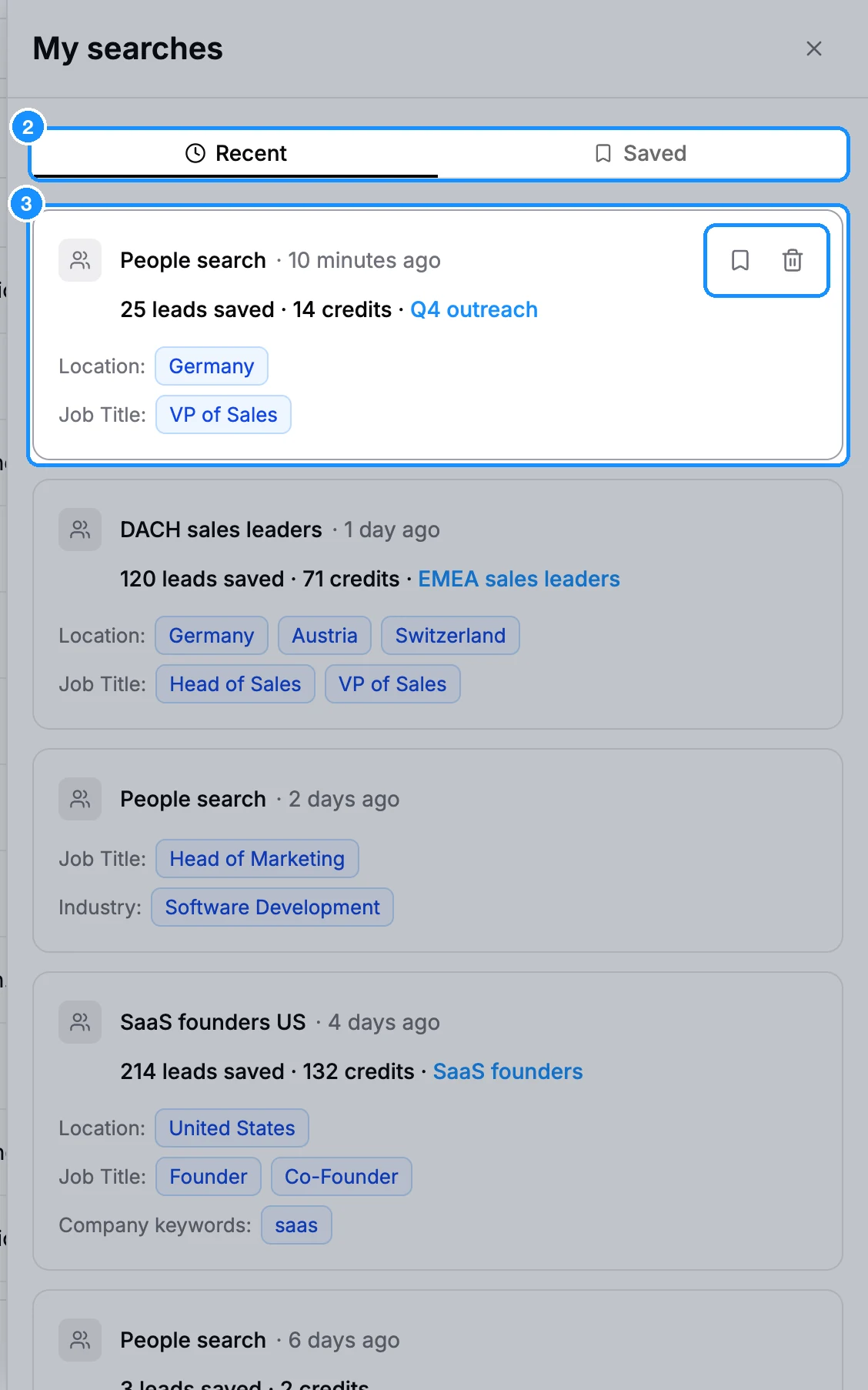
Each card shows the filters, when you last ran it and, if you saved people from it, how many, the credits used and the list they went to. Click the list name to open it.
With no filters set, the People and Companies pages show the same Recent and Saved tabs in place of results.
Rename or delete a search
Hover a card and use its icons:
- Save search: name a recent search so it moves to Saved.
- Rename search: change a saved search's name.
- Delete search: remove it. This cannot be undone.
Search alerts
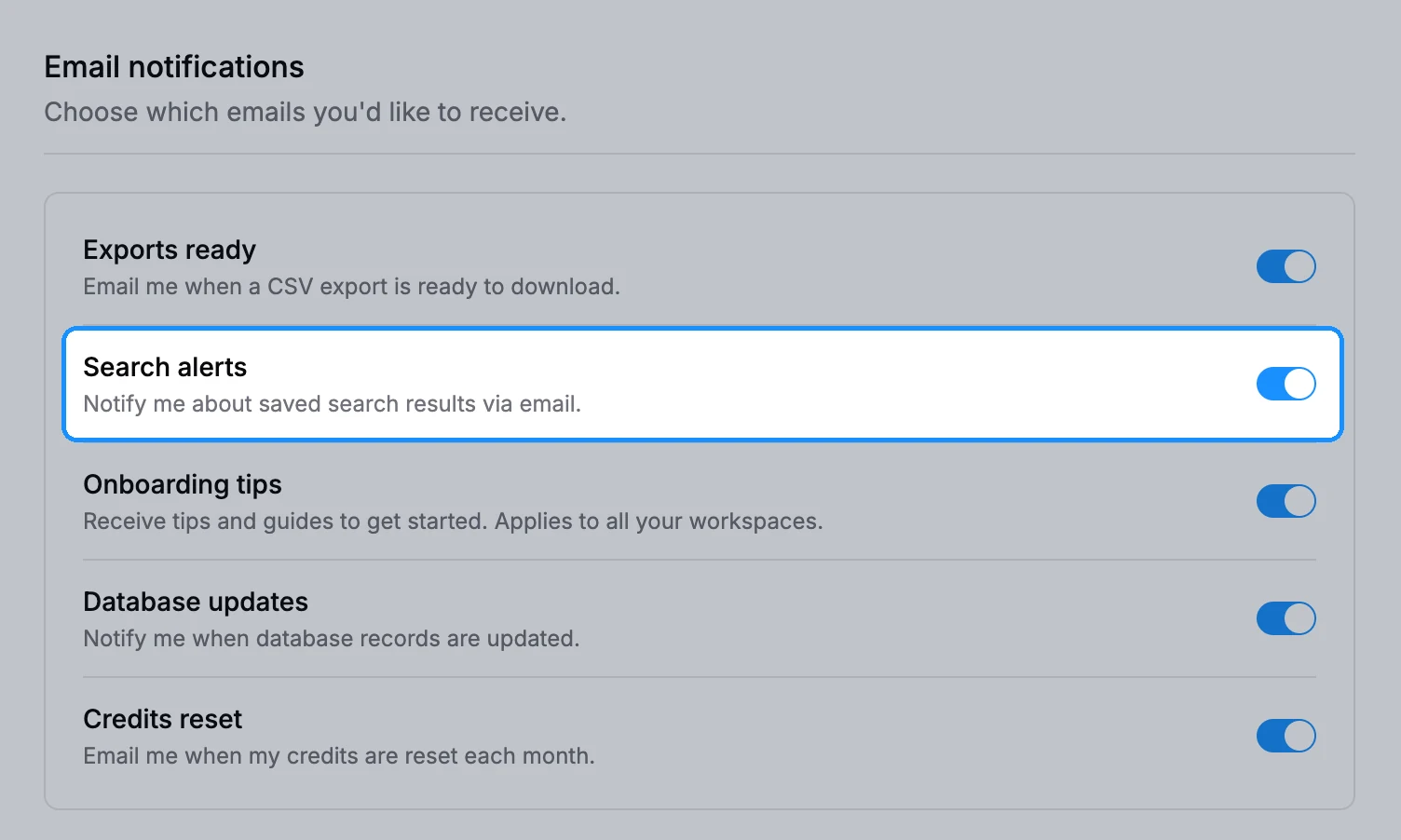
Search alerts in Settings > Notifications controls whether we may email you about your saved searches. Turn it off to stop these emails.
FAQ
Where is "Recent activity" with my saved-leads history?
It is now My searches > Recent. Each card still shows how many people you saved from that search and into which list.
Can my teammates see my saved searches?
No. My searches lists your own searches. To share results, save the people to a list; lists are shared with the workspace.