

Table of content
Invite teammates from Settings > Team. There is no limit on team size and no extra cost: everyone shares the workspace's plan, credits and lists.
Before you begin
- Only the workspace admin can invite and remove members.
- The workspace you are in is the one you invite people to. Switch first if needed (see Create, switch and manage workspaces).
- Credits: teammates spend the workspace's shared balance. There are no per-member limits.
Roles
A workspace has two roles, admin and member.
| Search, reveal, save, export, enrich, use the extension and API | Yes | Yes |
| See the workspace's lists and saved people and companies | Yes | Yes |
| Buy, change, pause or cancel the plan, billing details | Yes | No |
| Connect CRM and Google Sheets integrations | Yes | No |
| Zapier, API keys, Google Sheets add-on | Yes | Yes |
| Invite and remove members | Yes | No |
| Rename or delete the workspace | Yes | No |
| See every member's spending on the Usage page | Yes | Own only |
The person who creates a workspace is its admin. To make someone else the admin, contact support from the chat icon in the top bar.
Invite a teammate
Open Settings > Team.
Under Invite teammate, type their work email and click Send invite. You see "Invitation sent".
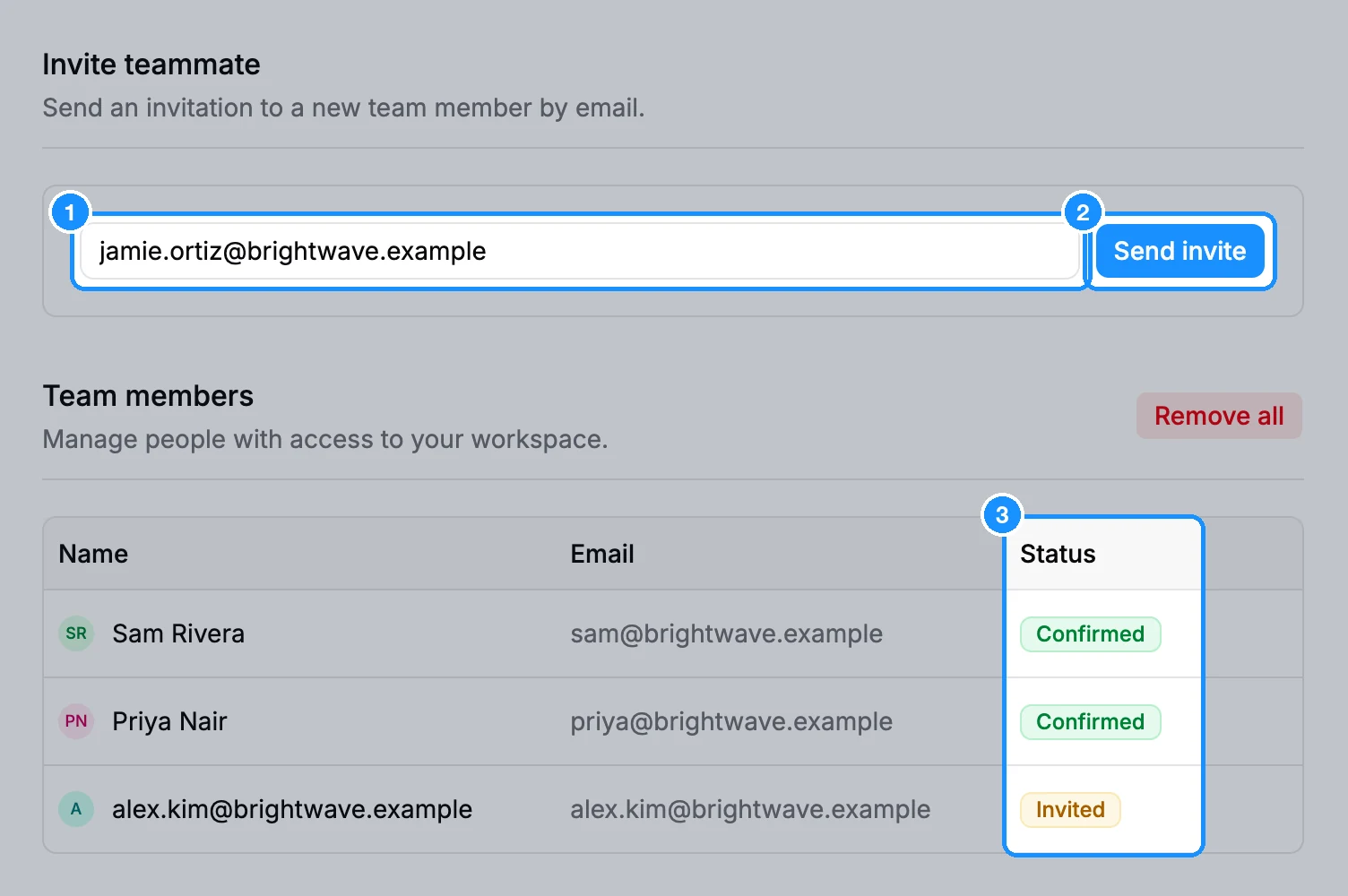
They get an email with a link. New users sign up from it; people who already have an account join from the link, or click Accept on the "Invited to workspace from ..." notification in the app.
The teammate shows as Invited until they join, then Confirmed. They then pick your workspace from the Workspaces list in the account menu.
A workspace can send up to 50 invitations a day, and one person up to 100 a day across workspaces.
Remove members
One member: click the Remove member icon at the end of their row. The same icon withdraws a pending invitation, and its link stops working.
Everyone: click Remove all, then Remove all again in the dialog. This removes every non-admin member and can't be undone.
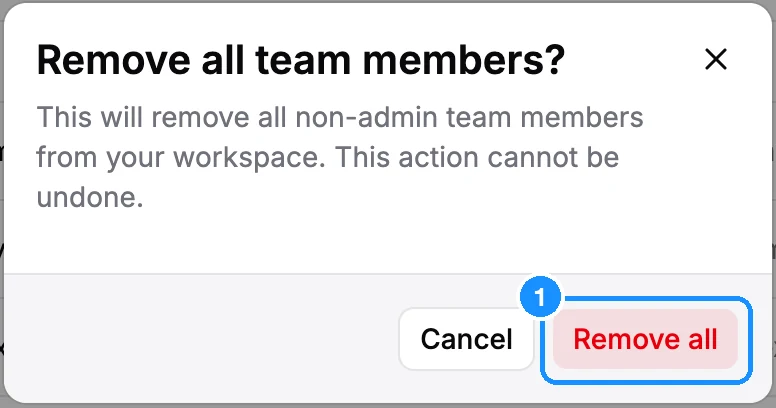
A removed member is signed out of the workspace at once. What they saved stays in the workspace.
FAQ
How many users can we add?
As many as you like. Teammates are free and share the workspace's credits.
Can two teammates save the same person?
They don't need to. Saved people are shared across the workspace, and an email the workspace already owns is free for everyone in it.
I was invited but I see an empty workspace.
You are in your own workspace. Open the account menu and pick the team's workspace under Workspaces.