

Table of content
The GetProspect add-on for Google Sheets works with leads inside a spreadsheet, without uploading a file to the app. It signs in with your GetProspect account and spends your workspace's credits.
This is not the Google Sheets integration on the Integrations page, which copies the people you save into a spreadsheet. For that, see Google Sheets.
Before you begin
- A GetProspect account. Any member of the workspace can connect the add-on.
- Credits: the add-on spends your workspace's credits. See How credits work.
Steps
Install Email Finder, the GetProspect add-on, from the Google Workspace Marketplace.
Open a spreadsheet and start Email Finder from the Extensions menu or the add-ons panel on the right.
When the add-on asks you to sign in, a GetProspect page opens: Connect Google Sheets to GetProspect. Pick the Workspace whose credits the add-on should use, then click Connect app.
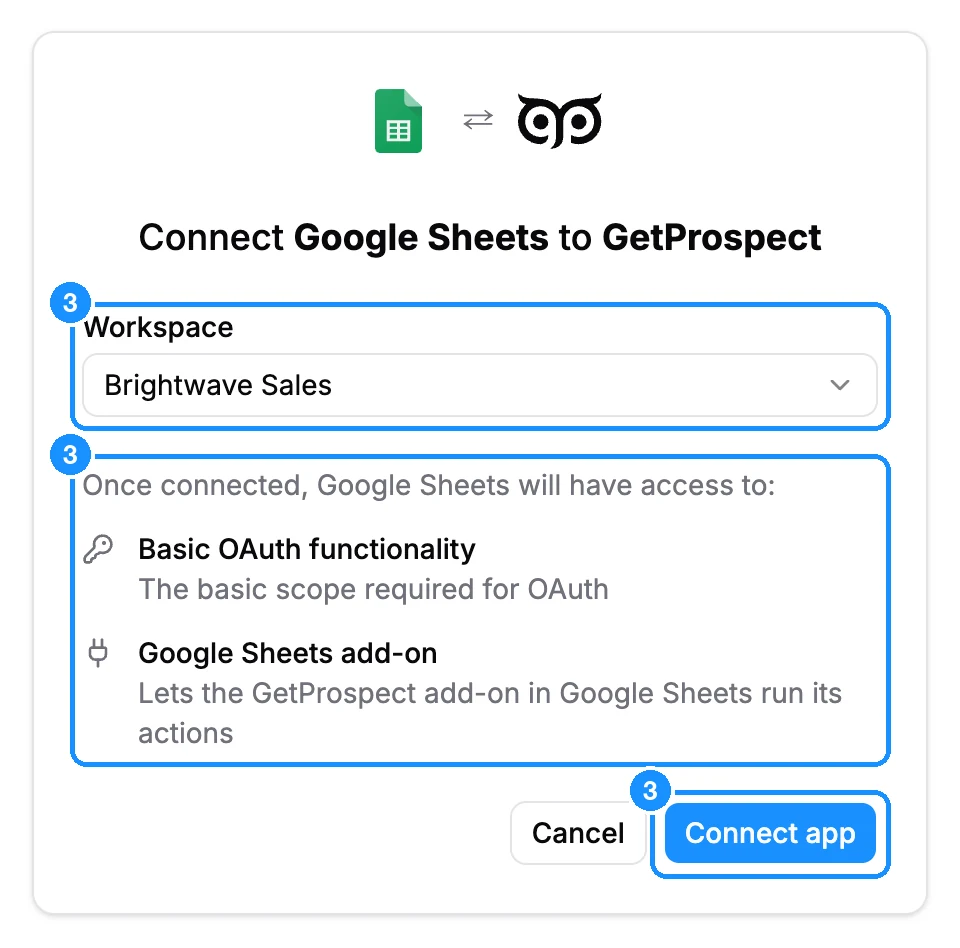
The add-on gets access only to what the page lists: Basic OAuth functionality and Google Sheets add-on. You never paste an API key.
Get help
If the add-on does not work as expected, contact support through the chat icon in the top bar of the app, or email . Tell us your sheet's columns and what you see.
FAQ
Do I need an API key?
No. The add-on signs in with your GetProspect account.