

Table of content
Upload a file of people or companies and get it back with verified emails, optional mobile numbers and company data. It runs on the CSV enrichment tab of Enrichment.
Before you begin
- Any member of the workspace can enrich files.
- Your file: CSV, TXT, TSV or Excel, up to 1,000,000 lines, 150 MB and 200 columns (Excel: first sheet only, up to 100,000 rows). Each row needs a LinkedIn URL, a work email, or a name plus a company. See what each row needs.
- Credits: people files cost 1 email credit per new email. Company files are free. Matching and the estimate are free.
Steps
Open Enrichment and click Enrich a CSV.
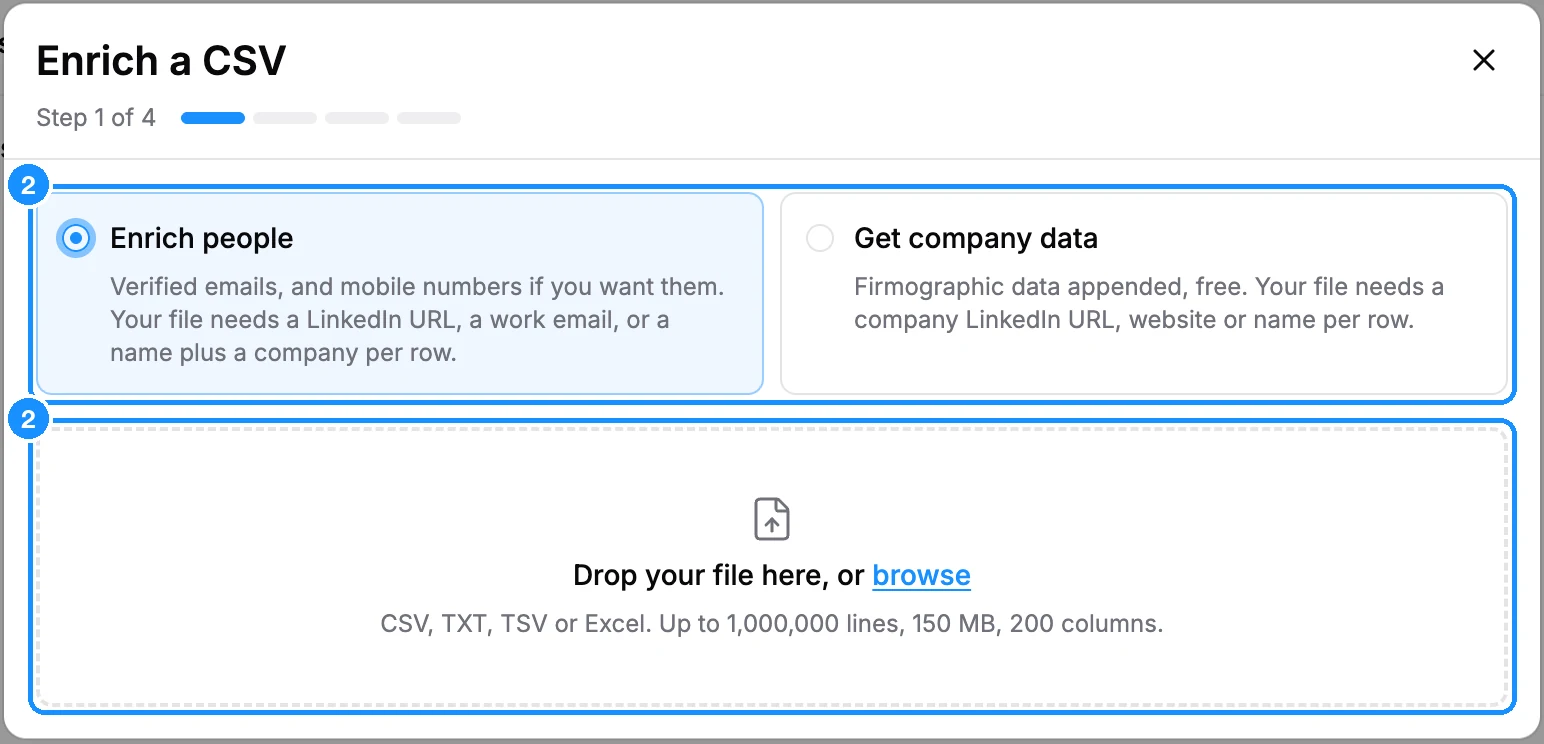
Choose Enrich people or Get company data, then drop your file on the upload area or click browse.
On Map your columns, check which column feeds each field, such as Person LinkedIn URL, Work email, Full name or Company website. Most are filled in for you; Not used skips a field. When you see Enough to match your records, click Next.
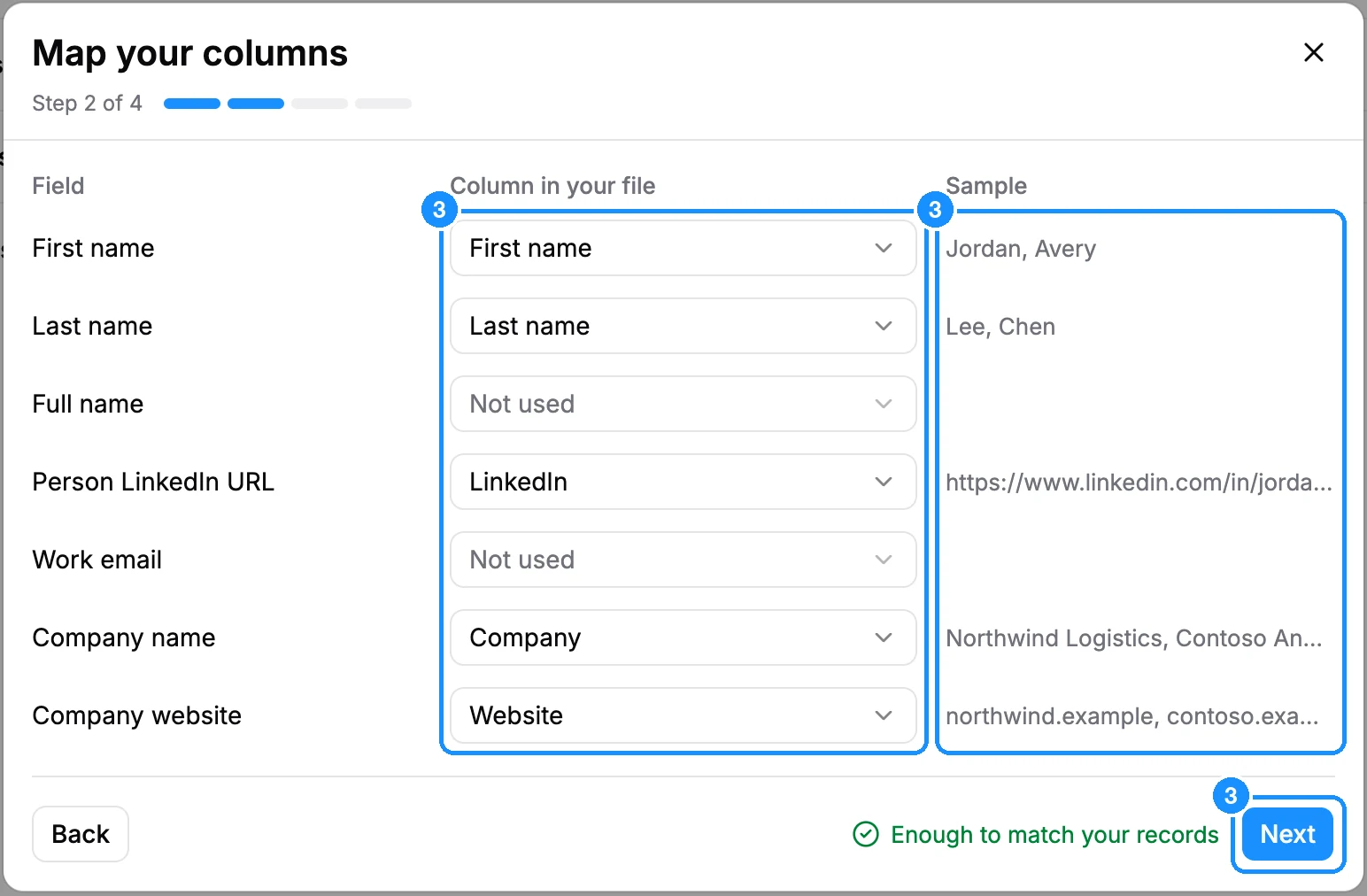
A column that looks wrong gets a warning with Don't use, and the button reads Continue anyway.
Wait while we match your file. You can close the window; the job's row gets a Review button when it is ready.
On Review and start, check how many rows will match and the Estimated cost. Then choose:
- Contacts with verified email to enrich only rows where we have a verified email, or All matched contacts to add person and company data to every matched row.
- Enrich mobile numbers (1 phone credit per number found) if you want mobiles.
- The Person fields: and Company fields: to add. All are ticked by default.
- Save matched to list: click Choose a list to save the matched records to one or more lists when the job finishes.
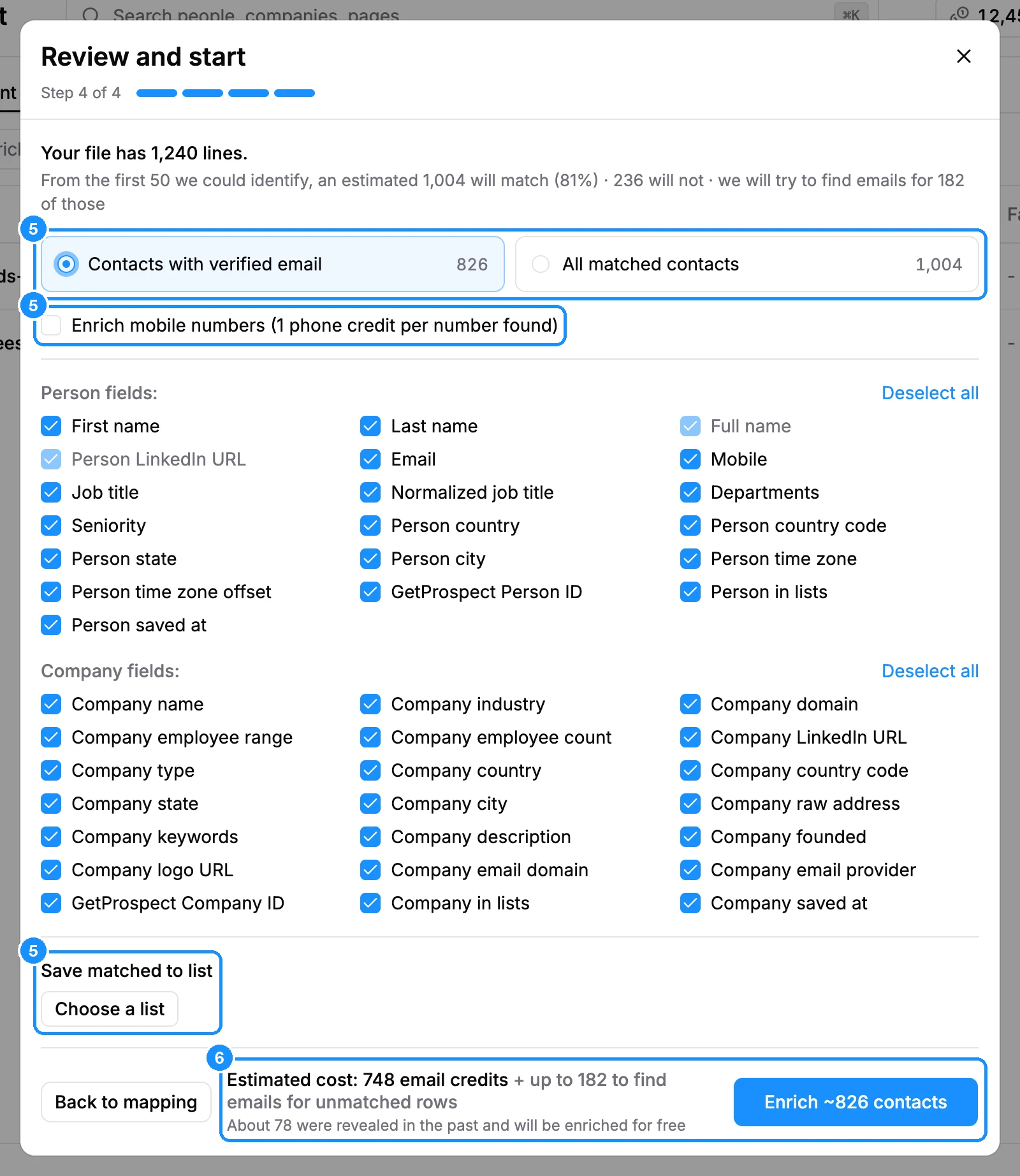
Click Enrich ~N contacts (or companies). The job runs in the background.
What you get
The job appears in the history table with Lines, Matched, Emails and Failed counts. Status shows the running stage (Matching, Enriching, Finding emails, Preparing your file), then Completed, Stopped - out of credits, Failed or Cancelled.
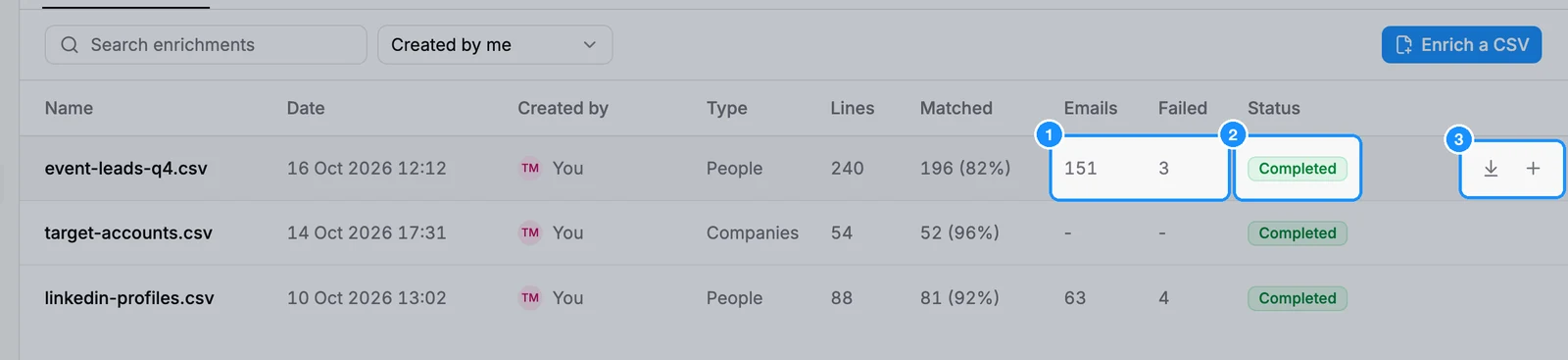
The file downloads by itself in the tab that started it; click the row or Download CSV to get it again. It is your file with our columns after yours: see what the result file contains. Click the Failed count to download failed rows. Add to list on a completed row saves its matched records to a list later.
Credit usage
| Matching your file and the estimate | Free |
| Each new email added to a people file | 1 email credit |
| An email you already own (revealed or saved before) | Free |
| Each mobile number found, if you ticked mobiles | 1 phone credit |
| Rows with no match, no email or no mobile | Free |
| Company files | Free |
| Saving matched records to a list from the job | Free; people whose email you have not paid for are left out |
If email credits run out mid-job, the file holds everything paid for so far and the status reads Stopped - out of credits. If the estimate exceeds your balance, the start button is disabled: see Ran out of credits?
FAQ
Why did my file return fewer emails than expected?
We add only emails that passed our verification, and no accept-all ones. Rows with only a name, or a personal email such as Gmail, cannot be matched. See what each row needs.
I enriched companies. Where are the people?
Company enrichment adds company data only. To find their people, use the Company filter's bulk list in People search.
Can I import my own contacts into a list without enriching?
No. The old import is gone. Enrich the file and use Save matched to list.