

Table of content
Lists hold the people and companies you save. Each list holds either people or companies. All lists live on the Lists page and are shared with everyone in your workspace. A list does not update itself: it holds exactly the records you added.
Before you begin
- Any member can create, rename, export and delete lists.
- Credits: creating, renaming and deleting lists is free. Saving people can cost email credits; see Reveal or save?.
Steps: create a list
Open Lists and click Create list.
Type a name, choose People or Companies, and click Create.
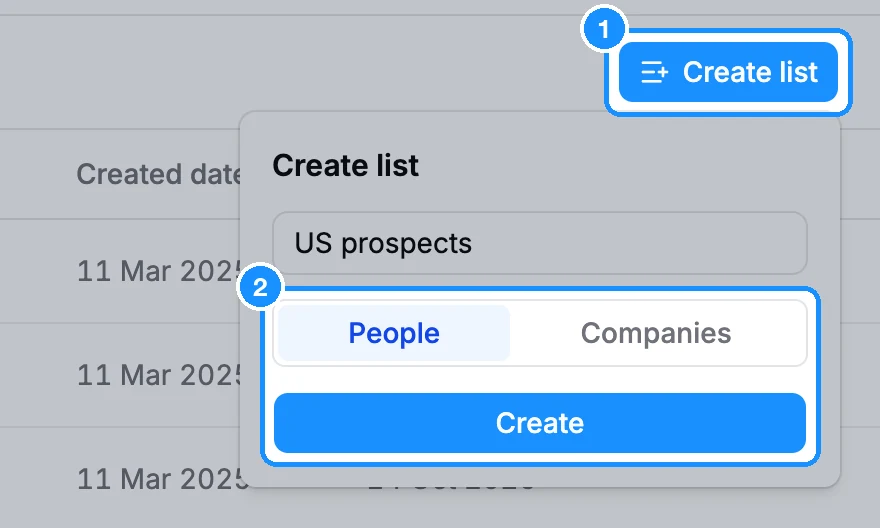
You can also create a list while saving. In any Add to list picker (search results, the person or company panel, the Chrome extension), type a new name and click Create list "
Find a list
- Use the type filter: People and companies, People or Companies.
- Use the creator filter: Created by me, Created by anyone, or a teammate's name. Clicking a face in the Created by column does the same.
- Type in Search for lists.
The four rows at the top (All saved people, Saved people without list, All saved companies, Saved companies without list) are built-in views, not lists. See All saved people and companies.
Add and remove records
- Add: tick people or companies in a search or a list and click Add to list, or use Add to list in a panel or the extension.
- Remove one record from a list: hover the list icon on its row and untick the list.
- Move records: on a list screen, tick them, click Add to list, tick the new list and turn on Remove from other lists.
Export, rename or delete a list
Hover a row on the Lists page to see its icons: Export, rename and Delete list. The same icons sit in the header when the list is open.
- Export opens the export dialog for the whole list. See Export people and companies.
- Rename: click the pencil, edit the Name and click Save.
Steps: delete a list
Hover the list and click Delete list. The dialog says you can restore it from Trash for 90 days.
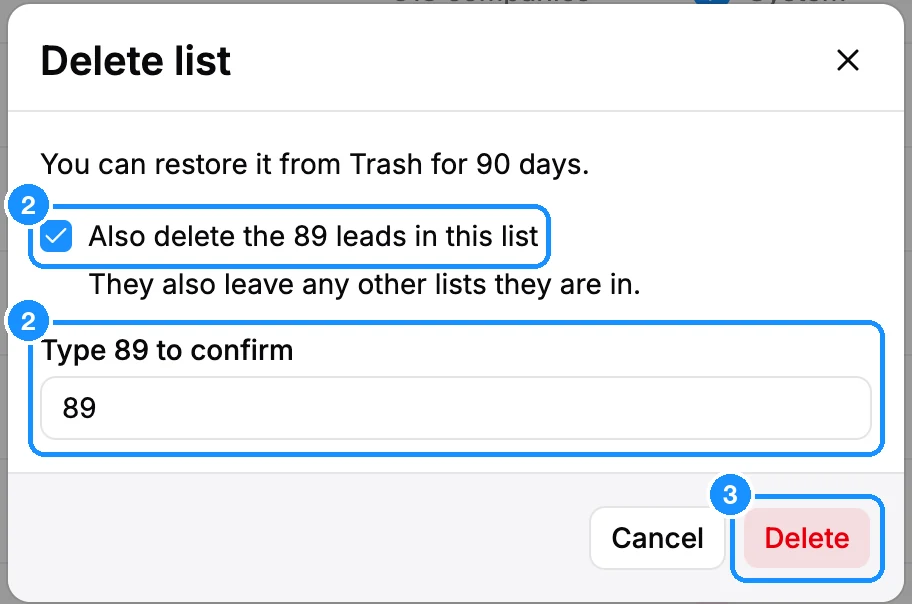
To delete the people or companies too, tick Also delete the N leads in this list (or companies) and type the number. They also leave any other lists they are in.
Click Delete.
If you leave the box unticked, only the list goes. Its people stay saved and appear in Saved people without list unless they are in another list.
FAQ
How do I restore a deleted list?
Go to Settings > Trash > Lists, tick the list and click Restore. See Restore from Trash.
Can I add a contact by hand or import my own file into a list?
You cannot type in a new contact. To match your own file, use CSV enrichment and save the matched rows to a list.
Why do I have to pick a list to save someone?
Every save goes into a list. Type a new name in the picker to create one on the spot.