

Table of content
Tick people or companies in a search or a list, and the toolbar switches to bulk actions. Select up to 25,000 records at once; you see the cost before anything is charged.
Before you begin
- Any member can use bulk actions.
- Credits: see "Credit usage". Companies are always free.
Which actions you get where
| Add to list | Yes | Yes, plus Remove from other lists to move records |
| Export | Yes | Yes |
| Delete | No | Yes |
| Enrich mobiles (people only) | No | Yes |
Steps: select records
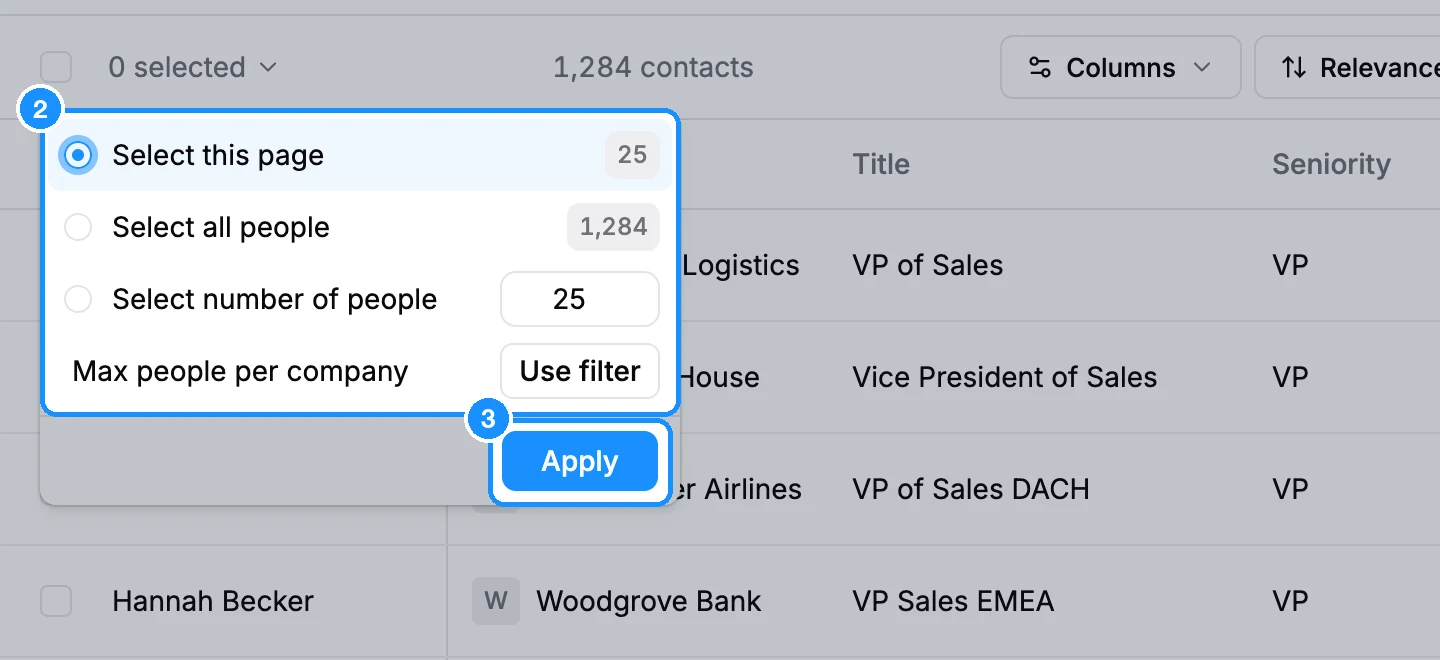
Tick the rows you want, or click the checkbox at the top of the table to open the selection menu.
Choose Select this page, Select all people (or companies) or Select number of people and type a number. In people results, Max people per company > Use filter limits how many people you take from each company.
Click Apply. The count next to the checkbox shows how many are selected. Clear selection undoes it.
Steps: add to a list
With records selected, click Add to list.
Tick one or more lists, or type a name and click Create list "
" .Read the cost line, for example "will use 87 email credits". People whose email you already own and people without an email are not counted.
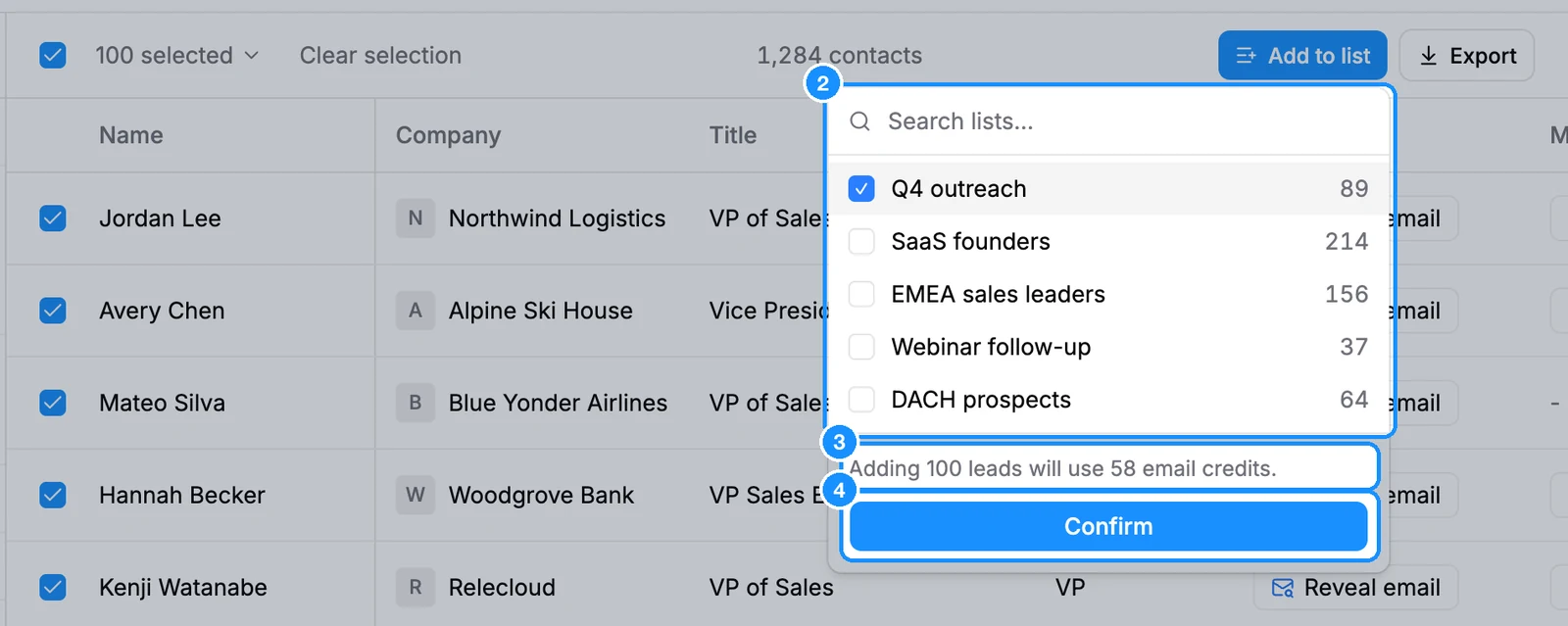
Click Confirm (for companies, which are free, the button reads Add N companies). A message confirms how many were added, with View list.
If the save needs more email credits than you have, the popover says "Not enough email credits" and Confirm stays off. Top up or narrow the selection. If credits run out partway through a large save, the message says the rest were not added; top up and save them again.
Export
Click Export, choose CSV or Excel (.xlsx), pick columns and click Export N contacts. Exporting people charges for included emails you do not own yet, and the dialog shows the cost first. If you do not have enough credits, export stays off until you top up or narrow the selection. Details in Export people and companies.
Delete
On a list or saved view, click Delete, type the number of records and confirm. They leave every list and stop counting as saved. You can restore them from Trash for 90 days, and you won't pay again for emails and mobiles you already revealed.
Enrich mobiles
On a list or saved view of people, click Enrich mobiles, then Confirm. See Reveal mobile numbers.
Credit usage
| Add to list, people | 1 email credit per person whose valid email you do not own yet; people without an email are free |
| Add to list, already-saved people or any companies | Free |
| Export, people | 1 email credit per included email you do not own yet |
| Export, companies | Free |
| Enrich mobiles | 1 phone credit per number found |
| Delete | Free |
FAQ
I saved 25,000 people. How do I save the next 25,000?
Turn on Duplicate Control > Hide already saved people in the search, then select and save again. See Results per page and saving more than 25,000 people.
Why can't I see Delete or Enrich mobiles in People search?
They only work on people you saved. Open the list or All saved people and select them there.