

Table of content
Top search is the box at the top of every page, "Search people, companies, pages". Use it to find one person or company fast, or to jump to a page.
Before you begin
- Any workspace member can use it.
- Credits: free. It finds records; revealing contact details is a separate step.
Steps
Click the search box or press Cmd+K (Mac) or Ctrl+K (Windows). With nothing typed, it lists every page under Navigation, Settings and Quick actions.
Type at least two characters. Results appear in sections.
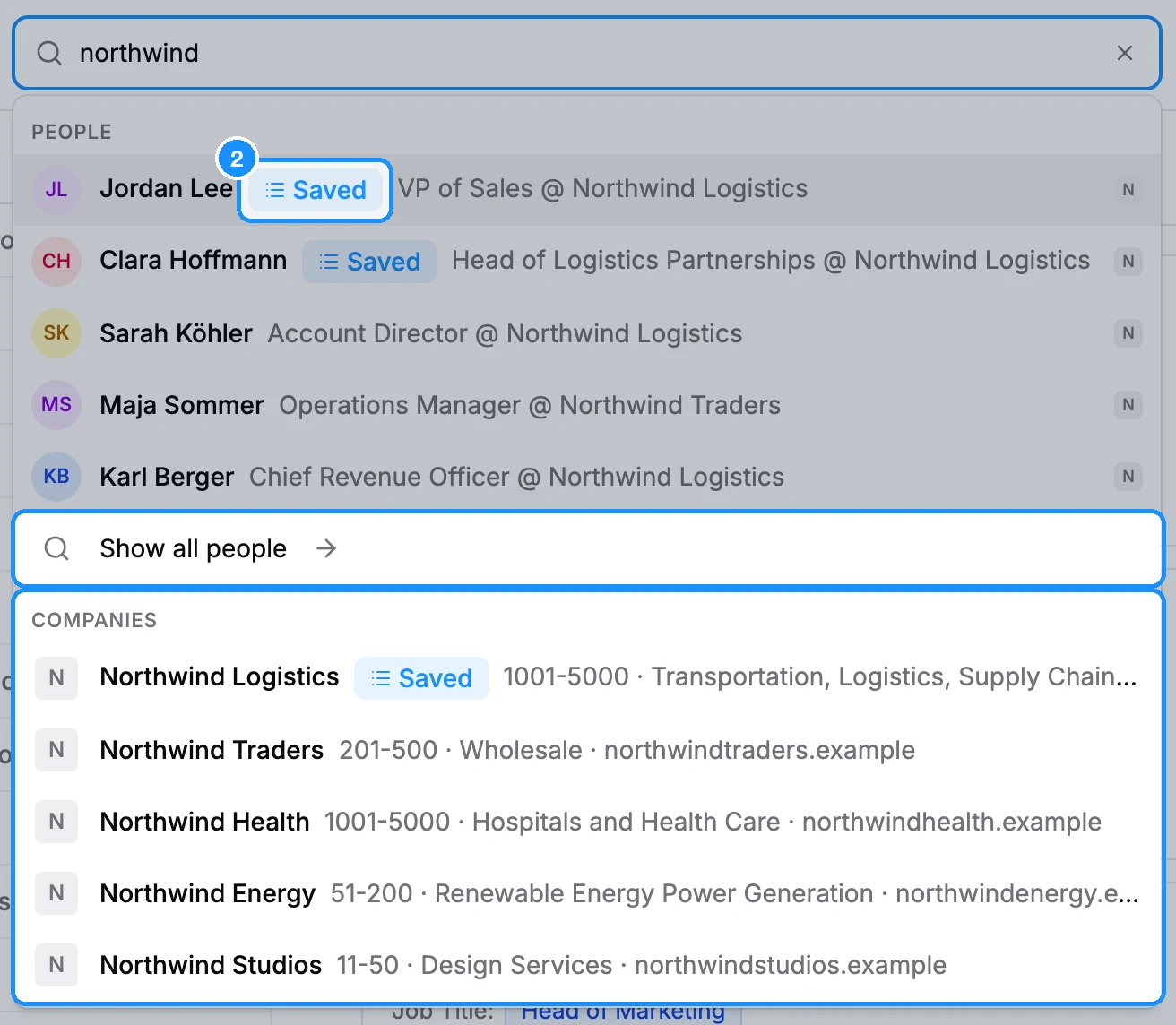
Use the arrow keys and Enter, or click a row. Press Esc to close.
What it finds
| A name | Up to 5 People and 5 Companies from the database. People and companies your workspace saved are marked Saved and listed first. |
| A name, then Show all people | People search with everyone of that name. |
| An email address | The person behind it, if your workspace already has that email. Otherwise Look up opens Enrichment > Email lookup for that address. |
| A LinkedIn profile or company URL | That person or company. |
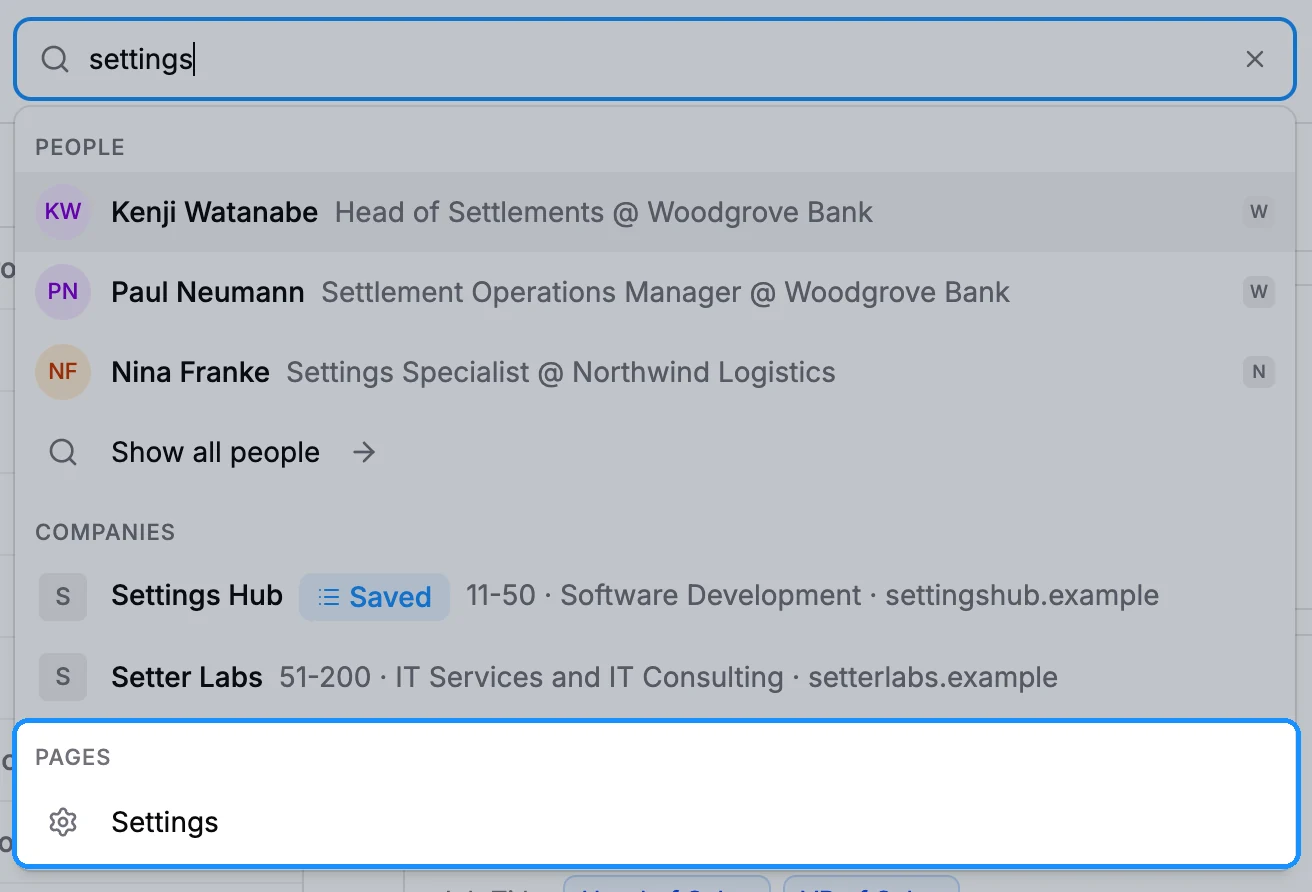
| A page or setting name, such as "trash" | Pages: sidebar pages, Settings › pages and Sign out. |
Picking a person opens People search filtered to that person. Picking a company opens Company search with that company.
FAQ
Where are my recently viewed contacts?
Top search has no recently viewed list. Your recent searches are under My searches on the People and Companies pages. See Saved searches.
It says "No results found". What now?
The person or company is not in the database under that name. Try the company domain or a LinkedIn URL, or build a search with filters in People search.