

Table of content
On a LinkedIn or Sales Navigator company page, or on any company's own website, the GetProspect side panel shows that company from our database. Its Contacts tab lists the company's people, with filters, so you can save the right ones to a list.
Before you begin
- Install the extension and sign in. See Install and sign in to the extension.
- Any member of the workspace can do this.
- Credits: viewing the company and its people and saving the company are free. Saving or revealing people can cost email credits, only for valid emails you do not own yet.
Steps
Open a company page on LinkedIn or Sales Navigator, or go to a company's website, such as
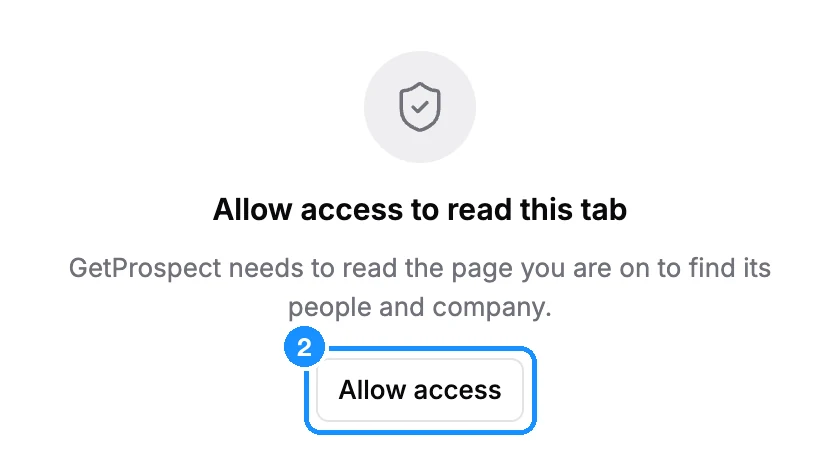
acme.com.Click the GetProspect icon in the toolbar. On a website, the panel looks up the company by the site's domain. The first time, it shows Allow access to read this tab: click Allow access and confirm in Chrome's prompt. You do this once, and every website works after that.
Read the company card on the Company tab. It shows the description and, when we have them, Location, Employees, Industry, Status, Business model, Revenue stream, Website, Email, Email domain, Founded and Keywords.
Save the company. Pick a company list in the list picker, or type a new name to create one, and click Add to list. Company lists are separate from people lists.
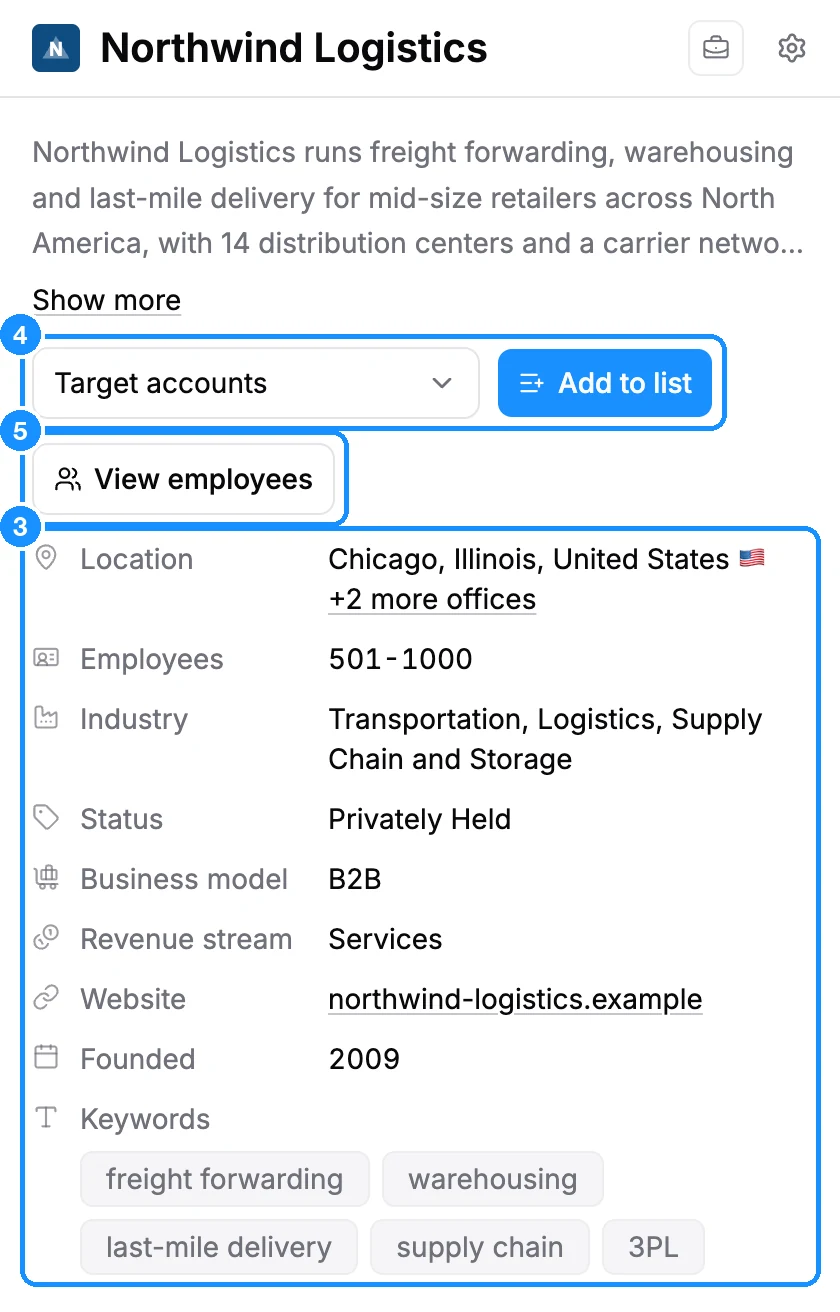
Open the Contacts tab, or click View employees. It lists the company's people from our database.
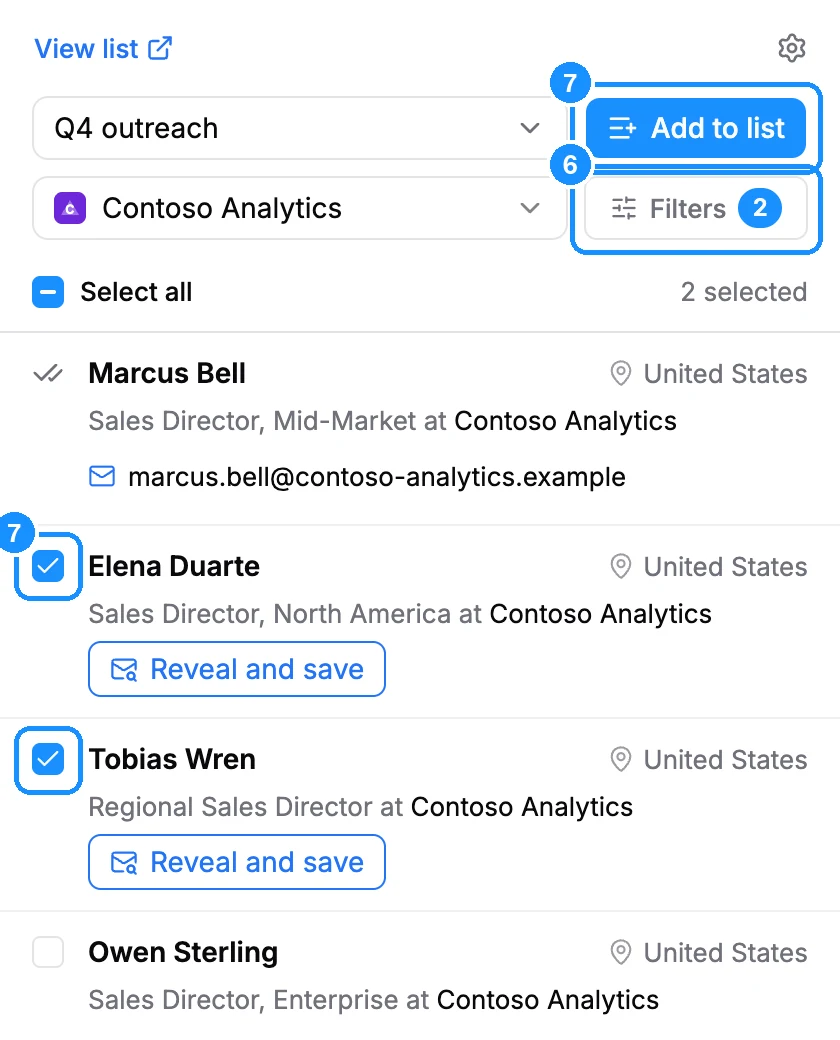
Narrow the list. Click Filters to filter by Duplicate Control, Location, Job Title, People, Time in Current Company, Time in Current Role, Job Change, Contact Details or Lists, and to change Sort by.
Pick a people list at the top, tick the people you want or Select all, and click Add to list. To save one person, click Reveal and save on their row.
What you get
Saved companies appear in your company list, and saved people in your people list, in the web app. If we hold no record for the site, the panel shows No company found with "There is no company record behind this website." Try Companies search in the web app by name.
Credit usage
| Viewing the company, its people and filters | Free |
| Saving a company | Free |
| Saving a person whose valid email you do not own yet | 1 email credit |
| Saving a person without an email, or whose email you already own | Free |
FAQ
Does the extension find emails written on the website itself?
No. It no longer reads emails from web pages. It shows the company's people and emails from our database.
Does the extension work on sites other than LinkedIn?
Yes, on any company website. Gmail and Outlook are not supported.
I opened a person's profile. Can I see their colleagues?
Yes. Click View employees in the person's Current company section to open the Contacts tab for that company.