

Table of content
The GetProspect extension opens as a side panel next to LinkedIn, Sales Navigator and company websites. Install it from the Chrome Web Store, then sign in with your GetProspect account.
Before you begin
- You need Google Chrome 116 or later. See Which browser should I use?
- You need a GetProspect account. The Free plan works.
- Credits: installing and signing in are free.
Steps
Open the extension's Chrome Web Store page and click Add to Chrome, then Add extension. A GetProspect tab opens. If you are already signed in to the web app, the extension signs in by itself and takes you to a LinkedIn people search.
Pin the extension so it is always one click away. Click the puzzle-piece Extensions icon in the Chrome toolbar, then the pin next to Email Finder - GetProspect.
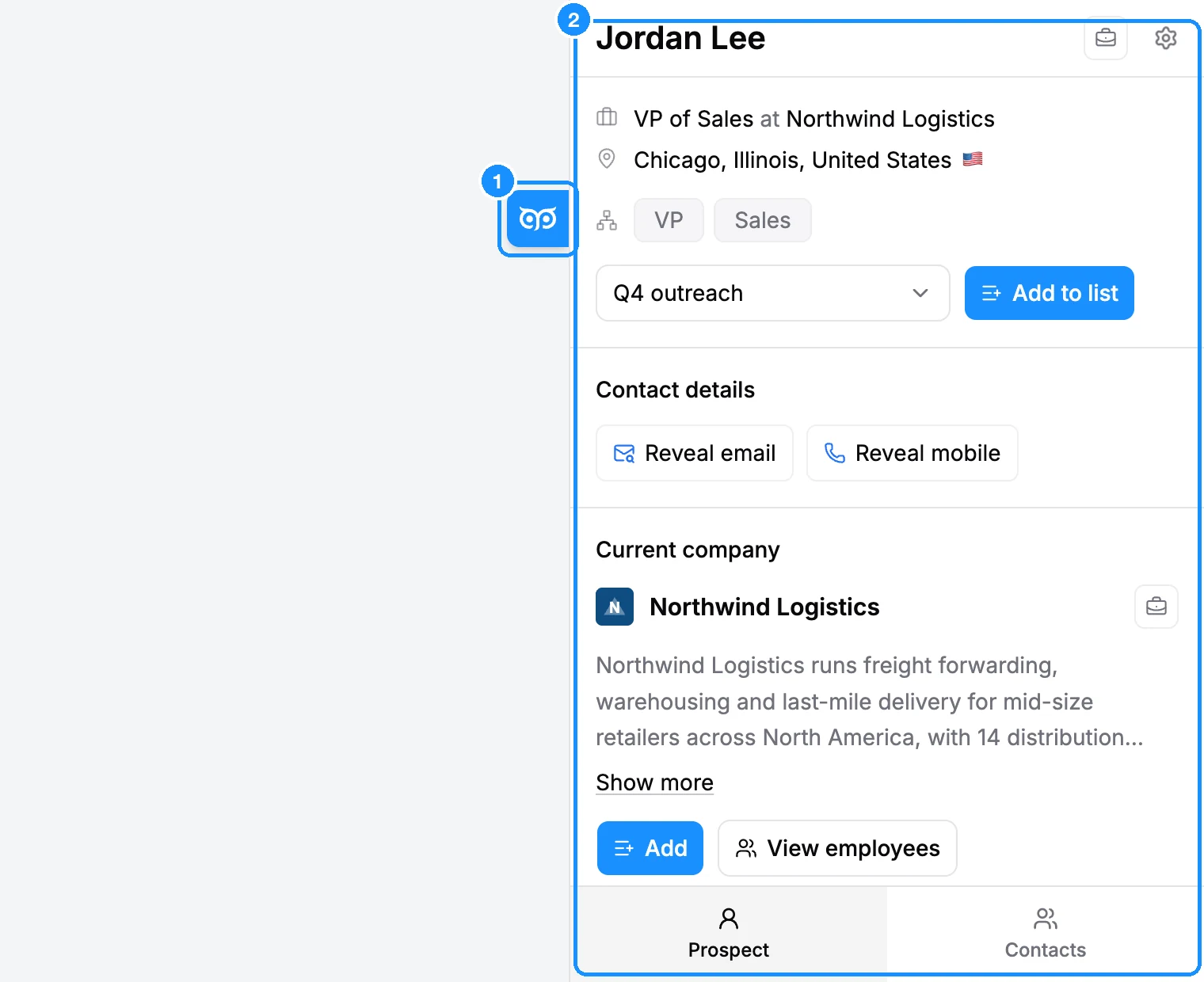
Open the side panel. Go to LinkedIn and click the GetProspect icon in the toolbar. The panel opens on the right, for that tab only. On LinkedIn you can also click the small blue GetProspect tile at the right edge of the page.
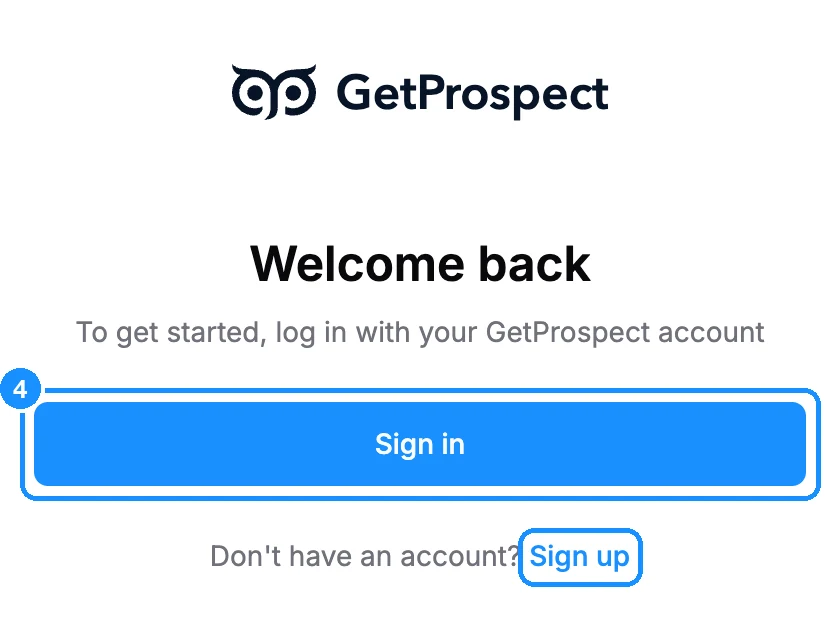
Sign in. If the panel shows Welcome back, click Sign in. A small window opens with the GetProspect sign-in page. Sign in with your email and password or with Google, and the window closes. No account yet? Click Sign up.
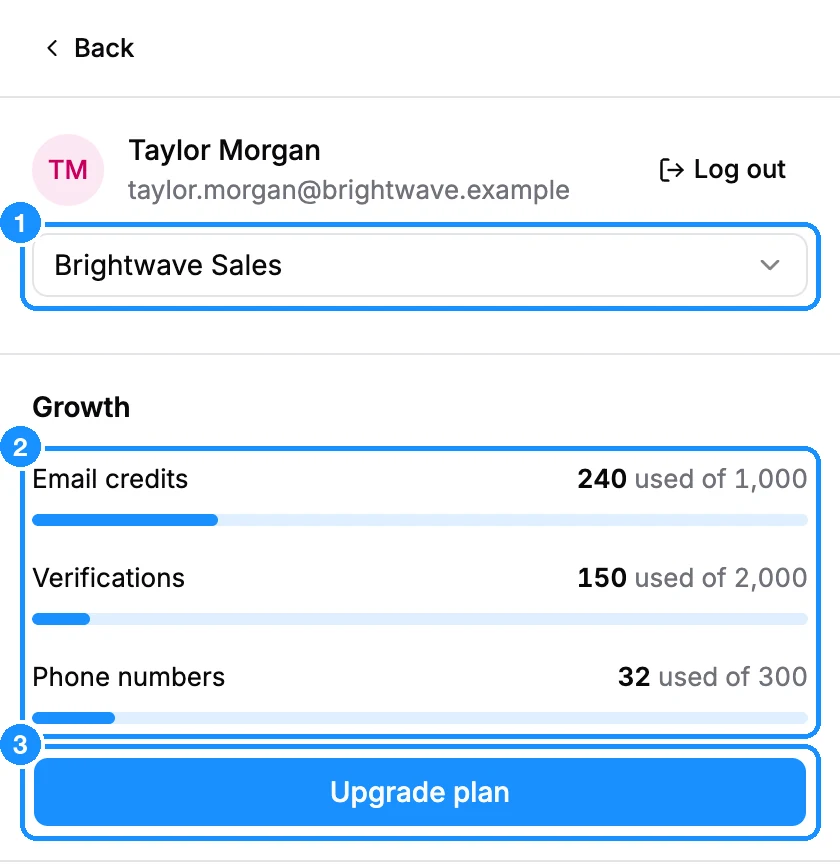
Check your workspace and credits. Click the gear (Settings) in the top-right corner of the panel. You see your account with Log out, a workspace menu, and your Email credits, Verifications and Phone numbers, each as "N used of M". Your plan name is shown above them, and Upgrade plan below. Pick another workspace in the menu to work in it: the lists and credits change with it.
Set your Preferences at the bottom of Settings:
- Display button on LinkedIn shows the blue tile at the right edge of LinkedIn pages. Hover it to drag it up or down, or to hide it.
- Check duplicates before save (on by default) locks people already saved in your workspace, so you do not save them twice.
What you get
The panel recognises the page you are on and shows the matching people and companies from the GetProspect database. Open in GetProspect in Settings links to Saved people, Saved companies, Lists, Integrations and Help center in the web app.
FAQ
Does the extension open by itself on LinkedIn?
No. Click the toolbar icon or the blue tile on the page. The panel stays with the tab you opened it in.
The extension shows no lists or the wrong credits. Why?
You may be in another workspace. Open Settings and pick the right one in the workspace menu.
Does it work on sites other than LinkedIn?
Yes. On any company website it shows that company and its people. See Company pages and any website.