

Table of content
On LinkedIn people search, Sales Navigator search, Sales Navigator lead lists and LinkedIn group member pages, the GetProspect side panel lists the people on the page. Tick the ones you want and save them to a list, or let Autosave pages to list save several pages for you.
Before you begin
- Install the extension and sign in. See Install and sign in to the extension.
- Any member of the workspace can do this. Sales Navigator pages need Sales Navigator; the rest work with a Basic LinkedIn account.
- Credits: 1 email credit per person with a valid email you do not own yet. See "Credit usage".
Steps
Run a people search on LinkedIn or Sales Navigator, open a Sales Navigator lead list, or open a group's members page.
Open the panel from the toolbar icon or the blue tile at the right edge of the page. It lists the people on the page that are in our database: name, title, company and a Reveal and save button.
Pick the list at the top of the panel. It starts on the list you last saved into. For a new list, type a name and click Create list "
" . If the panel says Create a list to save into, your workspace has no people list yet.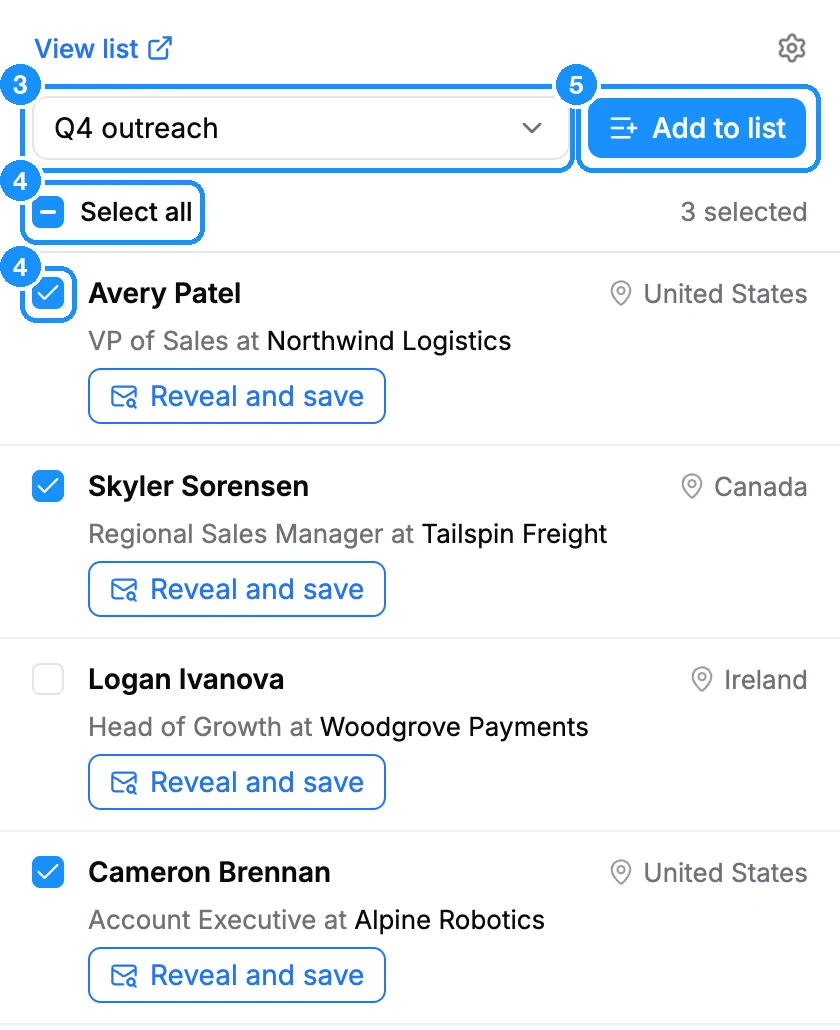
Select people. Tick their checkboxes, or tick Select all for the whole page. Go to the next LinkedIn page and tick more: your earlier picks stay, under Selected on previous pages.
Click Add to list. To save just one person, click Reveal and save on their row instead.
To save many pages at once, go to Autosave pages to list at the bottom of the panel. Set Pages (5 by default, up to 100) and click Start. The extension saves the people shown, goes to the next results page, and repeats until it reaches the number of pages you set. Keep the tab and the panel open while it runs: Pages counts down the pages left and Start stays greyed out. Click Cancel to stop.
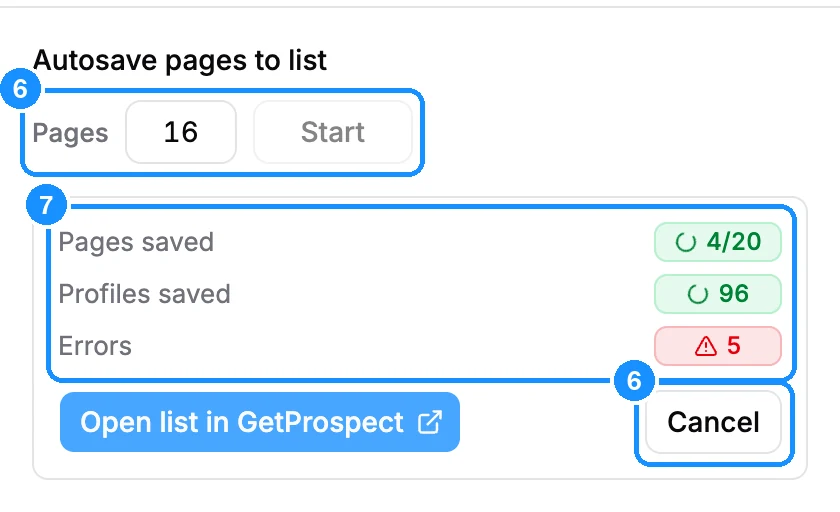
Read the run report. Pages saved and Profiles saved count what was saved. Click the Errors count to see each person who could not be saved and why. Click Open list in GetProspect to see the list in the web app.
Duplicates
With Check duplicates before save on (the default, in the panel's Settings), people already saved in your workspace show an Already saved mark and cannot be ticked. Select all and Autosave always skip people who are already saved. To add a saved person to another list, open their card and use the + next to their list tags.
Saving more than LinkedIn shows
LinkedIn shows only a limited number of results per search, fewer on a free account than in Sales Navigator. Autosave stops at the last page LinkedIn shows. To save more people from one search, run the same search in People search in the web app. You can save up to 25,000 people from one search there. See Results per page and saving more than 25,000 people.
Credit usage
| Viewing the people on a page | Free |
| Saving a person whose valid email you do not own yet | 1 email credit |
| Saving a person without an email, or whose email you already own | Free |
When your email credits run out, Autosave stops and the panel shows Your workspace is out of credits.
FAQ
Can I save people who have no email?
Yes. They are saved to the list for free. If we find their email later, it shows for free, because they are saved.
Is there a daily limit on how many people I can save from LinkedIn?
Your credits limit how many people you save. LinkedIn's own terms and limits still apply to your LinkedIn account.
Some people on the LinkedIn page are missing from the panel. Why?
The panel lists only people who are in our database. See Why the extension says "No profile for this person".