

Table of content
On a LinkedIn profile or a Sales Navigator lead page, the GetProspect side panel shows that person's card from our database. From the card you reveal their business email and mobile number and save them to a list.
Before you begin
- Install the extension and sign in. See Install and sign in to the extension.
- Any member of the workspace can do this. A Basic LinkedIn account is enough for profiles.
- Credits: opening the card is free. Revealing and saving cost credits, see "Credit usage".
Steps
Open a profile on LinkedIn (
linkedin.com/in/...) or a lead page in Sales Navigator.Click the GetProspect icon in the toolbar, or the blue tile at the right edge of the page. The person card loads: name, title and company, location, seniority and department, and the lists they are in.
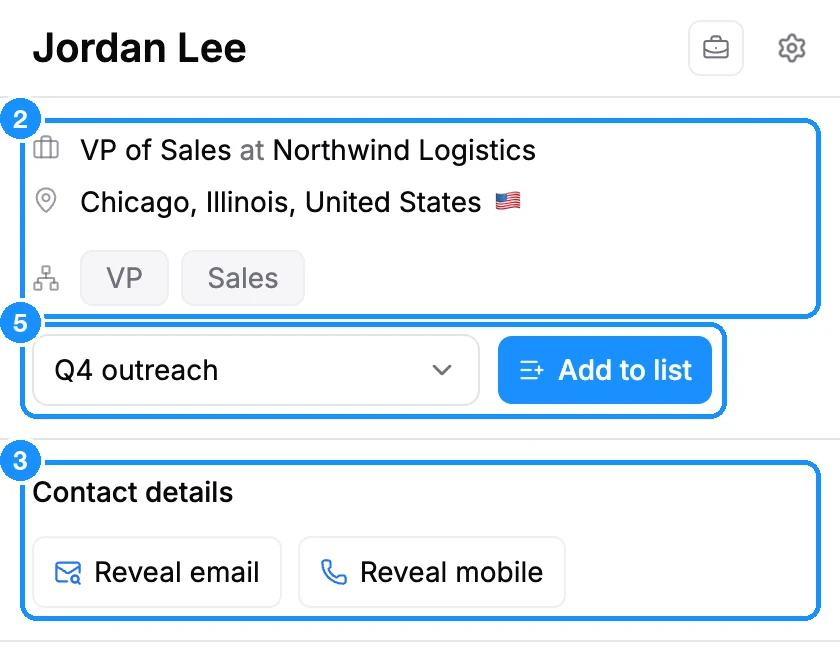
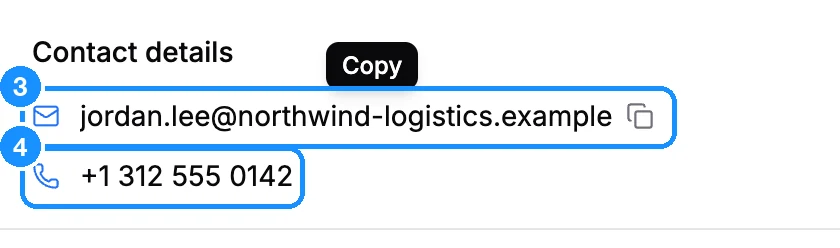
Click Reveal email under Contact details. The button shows a spinner while it works. Then the business email appears (hover it to copy it), or No email if we have none (free).
Click Reveal mobile to get the mobile number. If we have none, you see No mobile and pay nothing.
Save the person. Revealing does not add them to a list. Pick a list in the list picker, or type a new name and click Create list "
" . Then click Add to list. The list appears as a tag on the card; hover it to see the save date. To add the person to another list, click the small + next to the tags.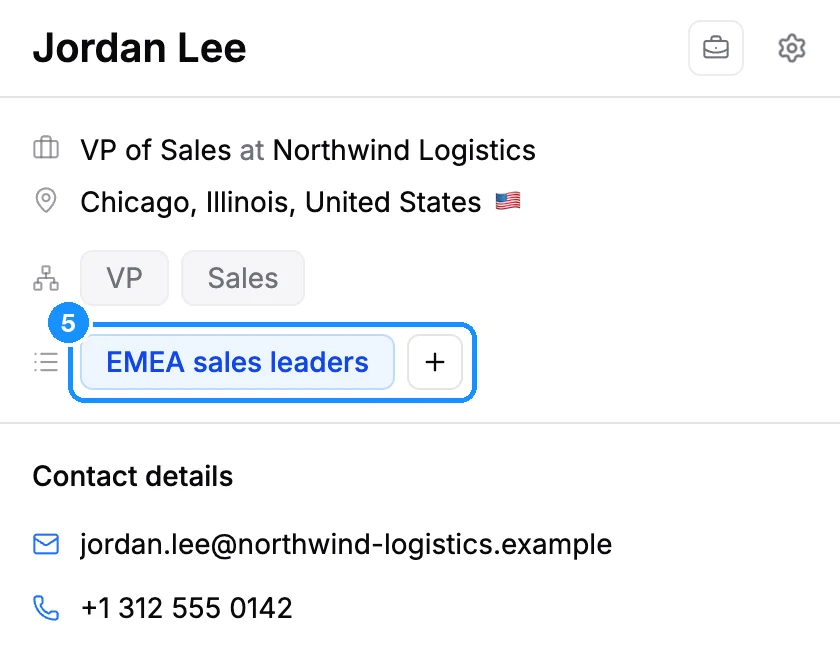
Use the company. The Current company section shows the person's employer. Add saves the company to a company list (free). View employees opens the Contacts tab with that company's people. Other employers are under Other current companies.
What the card can show
| Finding email | An email search started earlier is still running |
| No email | We have no valid email for this person. You were not charged. Click the pencil (Add email) to type one you know |
| No mobile | We have no mobile number for this person. You were not charged |
| Out of credits (mobile line) | Your workspace has no phone credits left. The link opens the plans page |
| "This person asked us to stop processing their data, so they can't be saved." | The person opted out. You cannot reveal or save them |
| No profile for this person | We do not hold this person. See Why the extension says "No profile for this person" |
What you get
Revealed emails and numbers stay yours in the workspace. Saved people appear in the list in the web app and sync to your CRM if one is connected.
Credit usage
| Opening the card, View employees, saving the company | Free |
| Reveal email | 1 email credit per valid email newly revealed; not found is free |
| Add to list | 1 email credit if the person has a valid email you do not own yet; free otherwise |
| Reveal mobile | 1 phone credit per number found; not found is free |
FAQ
I revealed an email, but the person is not in my list. Why?
Reveal only shows the email; to keep the person, click Add to list, free for an email you already revealed (see Reveal or save?).
The panel says "Your workspace is out of credits". What now?
Your email credits are used up. Click Upgrade plan, or see Ran out of credits?